TL;DR / At a Glance: To back up WhatsApp in 2026, go to Settings > Chats > Chat Backup. Android backups now count toward your 15GB Google Drive limit, while iPhone uses iCloud. For maximum security, enable End-to-End Encrypted Backups using a Passkey. To move to a new phone without using the cloud, use the “Transfer Chats” feature via QR code.
Updated on 20 April 2026
Introduction: If you haven’t checked your WhatsApp settings since 2023, you might be in for a surprise. The days of “set it and forget it” are over, especially with Google and Apple tightening the screws on cloud storage. Whether you’re moving to the new iPhone 17 or a Galaxy S26, ensuring your chats, voice notes, and those Mamak session photos are safe is crucial. Today, we’re doing a deep dive into the most secure and storage-efficient ways to back up your WhatsApp in 2026.
The Google Drive Storage Shift: The biggest change for Android users in 2026 is that your WhatsApp backups now count directly toward your 15GB Google Account storage. If you’re a heavy media sharer, your backup could easily eat up half your free space.
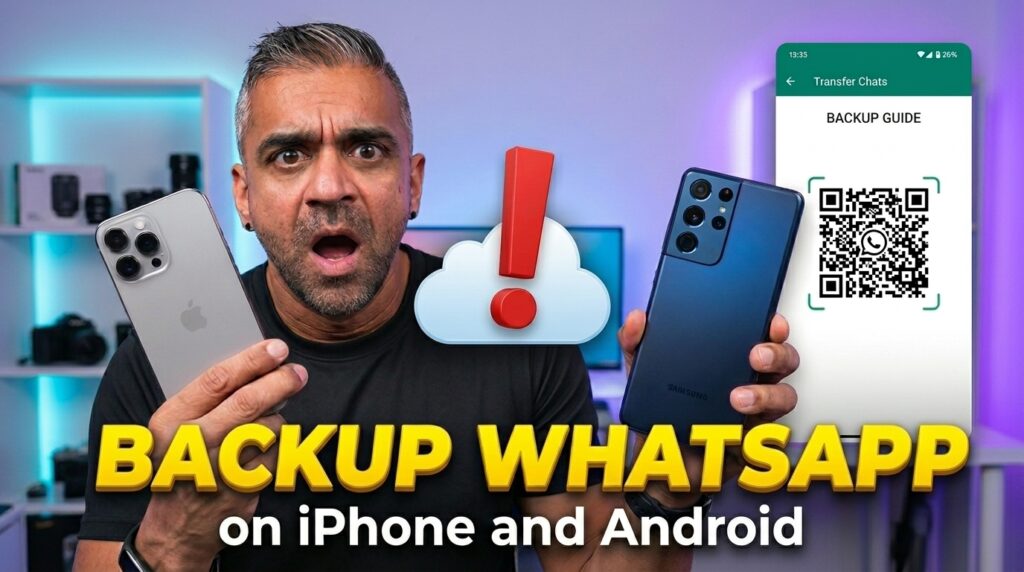
How to Back Up on Android (The 2026 Way):
- Open WhatsApp > Tap the three dots > Settings.
- Go to Chats > Chat Backup.
- Under Google Account settings, ensure you’ve selected the right account.
- Pro Tip: Toggle off “Include Videos” if you want to save significant cloud space.
- Tap Back Up to run a manual sync.
How to Back Up on iPhone (iCloud):
iPhone users still face the 5GB iCloud limit. To avoid the “Storage Full” error:
- Go to Settings > Chats > Chat Backup.
- Select Auto Backup (Daily is recommended for most).
- Ensure iCloud Drive is turned ON in your main iPhone settings, or the backup will fail.
Direct Chat Transfer (The No-Cloud Saviour):
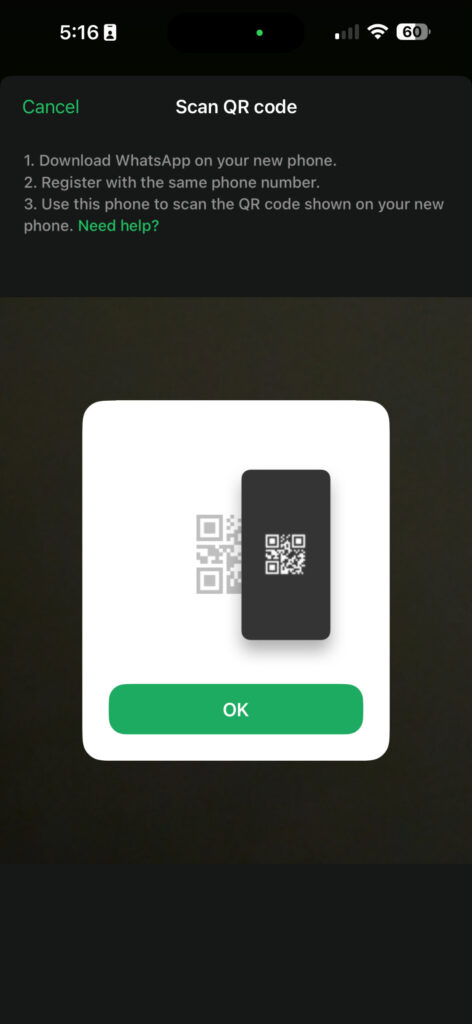
If you don’t want to pay for extra cloud storage, WhatsApp’s Direct Transfer is a 2026 must-know. This uses a local Wi-Fi connection to move data directly between phones.
- Go to Settings > Chats > Transfer Chats.
- Scan the QR code on your new device.
- Requirement: Both phones must be physically near each other and connected to the same Wi-Fi.
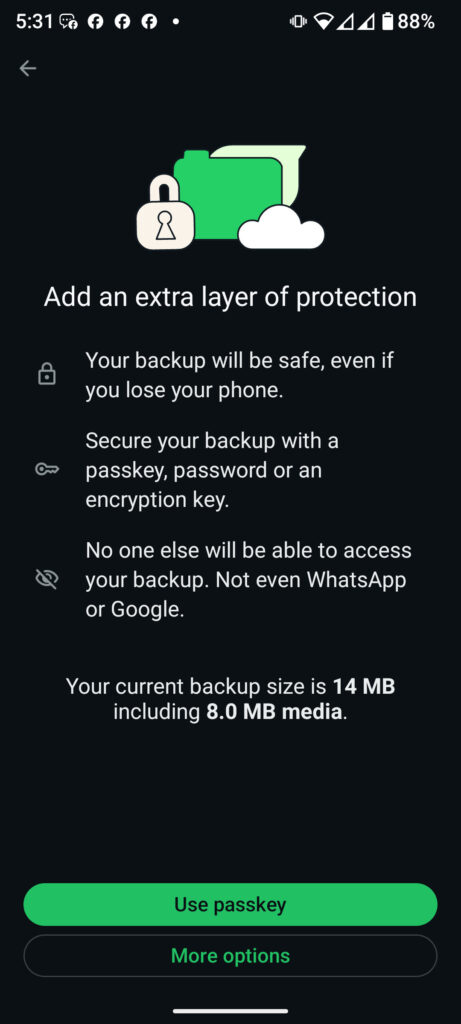
Security Upgrade: Passkeys and Encrypted Backups:
For the “Trust Equity” we talk about here at ALTV, I highly recommend turning on End-to-End Encrypted Backups. In 2026, you can now use your Passkey (FaceID/Fingerprint) to lock these backups. This means even if someone hacks your Google Drive or iCloud, they can’t read your chats.
How to Back Up WhatsApp in 2026 (Android & iPhone)
A complete guide to securing your WhatsApp chats. Learn how to manage the new Google Drive storage limits, use direct phone-to-phone transfers, and enable Passkey encryption for maximum security.
Total Time: 5 minutes
Open WhatsApp Settings
Open WhatsApp on your device. Tap the three dots (Android) or the Settings gear (iOS). Navigate to Chats and then select Chat Backup.
Configure Cloud Storage
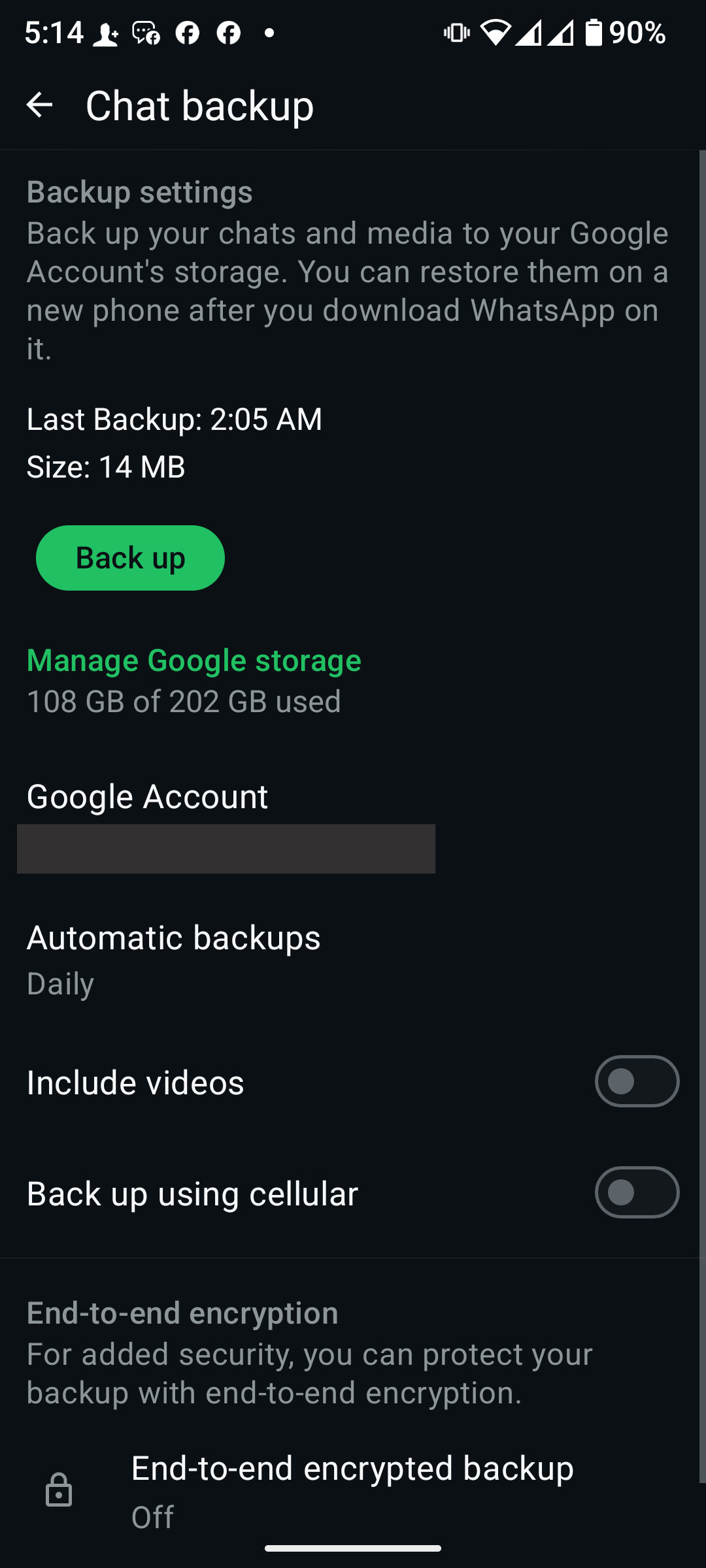
On Android, select a Google Account. Note: In 2026, this backup counts toward your 15GB Google Drive limit. On iPhone, ensure iCloud Drive is toggled ON in your system settings.
Secure with End-to-End Encryption
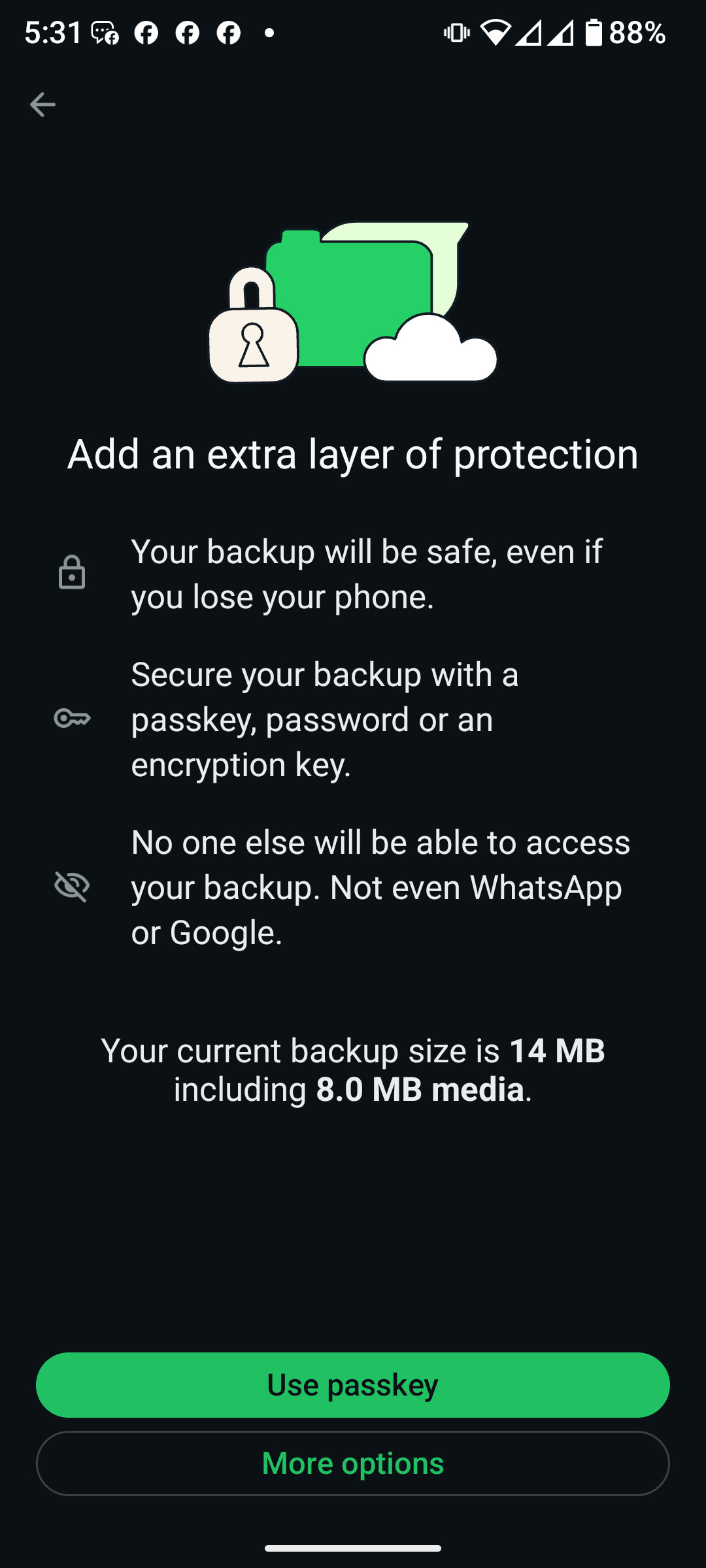
Tap End-to-end encrypted backup and select Turn On. Choose to secure it with your device Passkey (FaceID or Fingerprint). This ensures that even cloud providers cannot read your data.
Perform Manual Sync
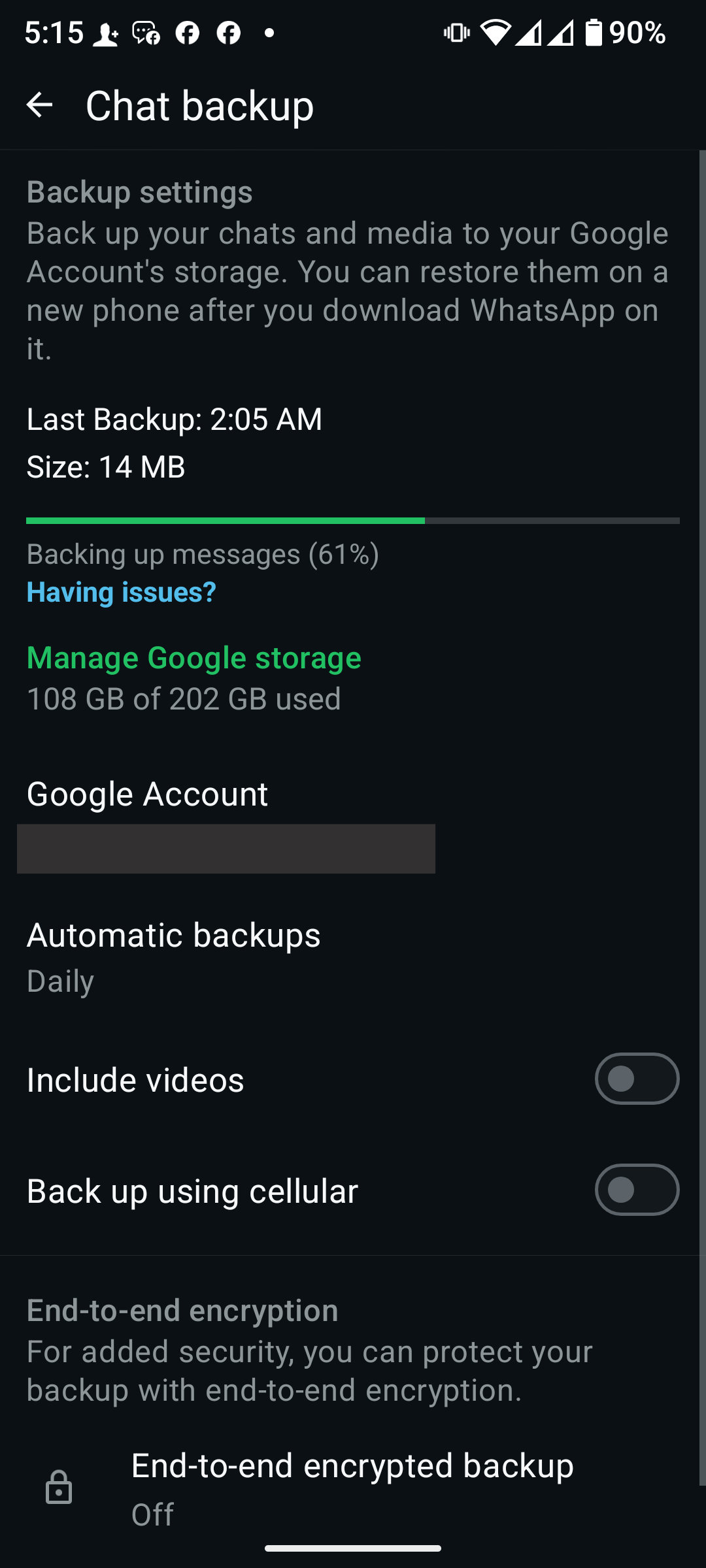
Tap the green Back Up button. Ensure you are connected to Wi-Fi, as 2026 media files (4K video/high-res photos) can be large and may consume significant mobile data.