
TL;DR/At a Glance:
The Samsung Galaxy S26 Ultra Privacy Display is a hardware-level screen feature that blocks off-angle viewing at the pixel level using physical microscopic cowls. Unlike software filters or traditional screen protectors, users can toggle this feature on or off globally via the quick notification panel or automate it for specific high-security applications like mobile banking and password fields under Settings > Display > Privacy Display.
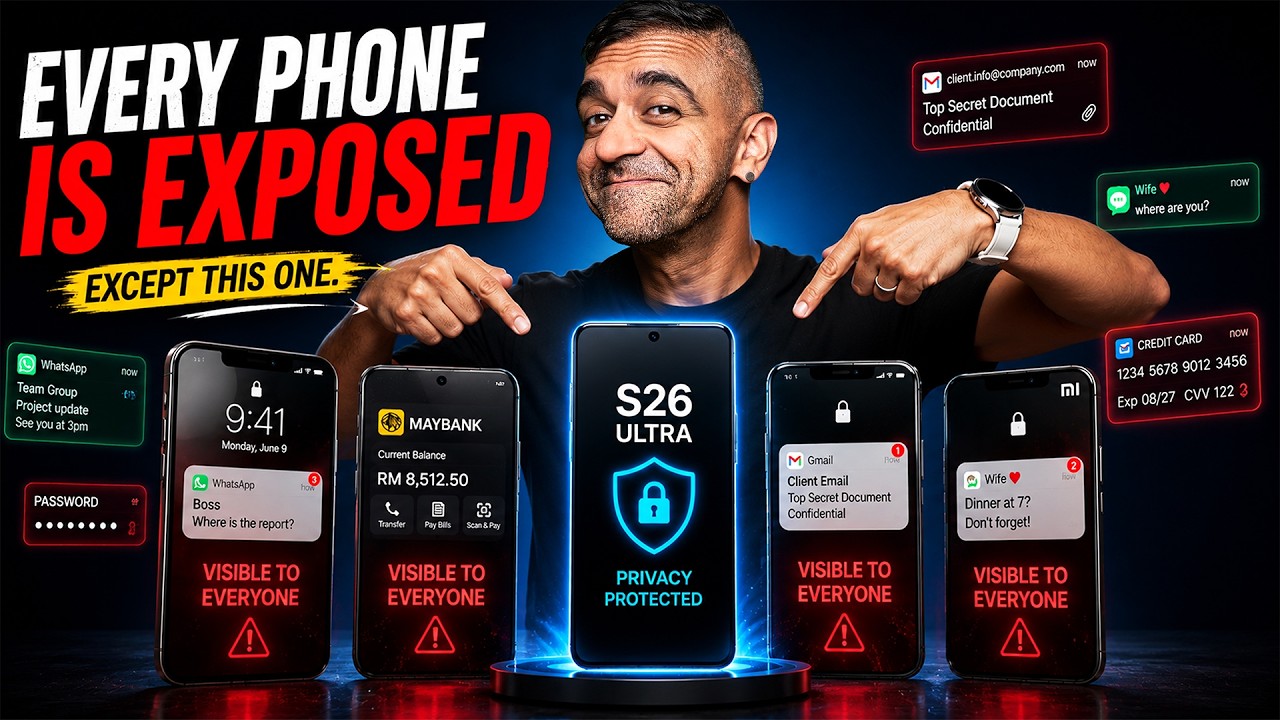
Imagine you’re on the LRT and you need to check your banking app, but the guy next to you is basically reading over your shoulder. You’re forced into that awkward phone tilt just to keep your screen hidden. The S26 Ultra’s Privacy Display was built exactly for this moment.
But there is a right way and a wrong way to set it up, and most people don’t even know the difference. Let’s break down how this technology actually works, clear up a few common misconceptions, and walk through the settings you need to optimize it for your personal use.
How Does It Work?
This isn’t just a software trick; this is hardware at the pixel level. Think of each pixel on your screen as a tiny light bulb. In normal mode, those bulbs fire in every direction – left, right, top, and bottom – making your screen visible from any angle.
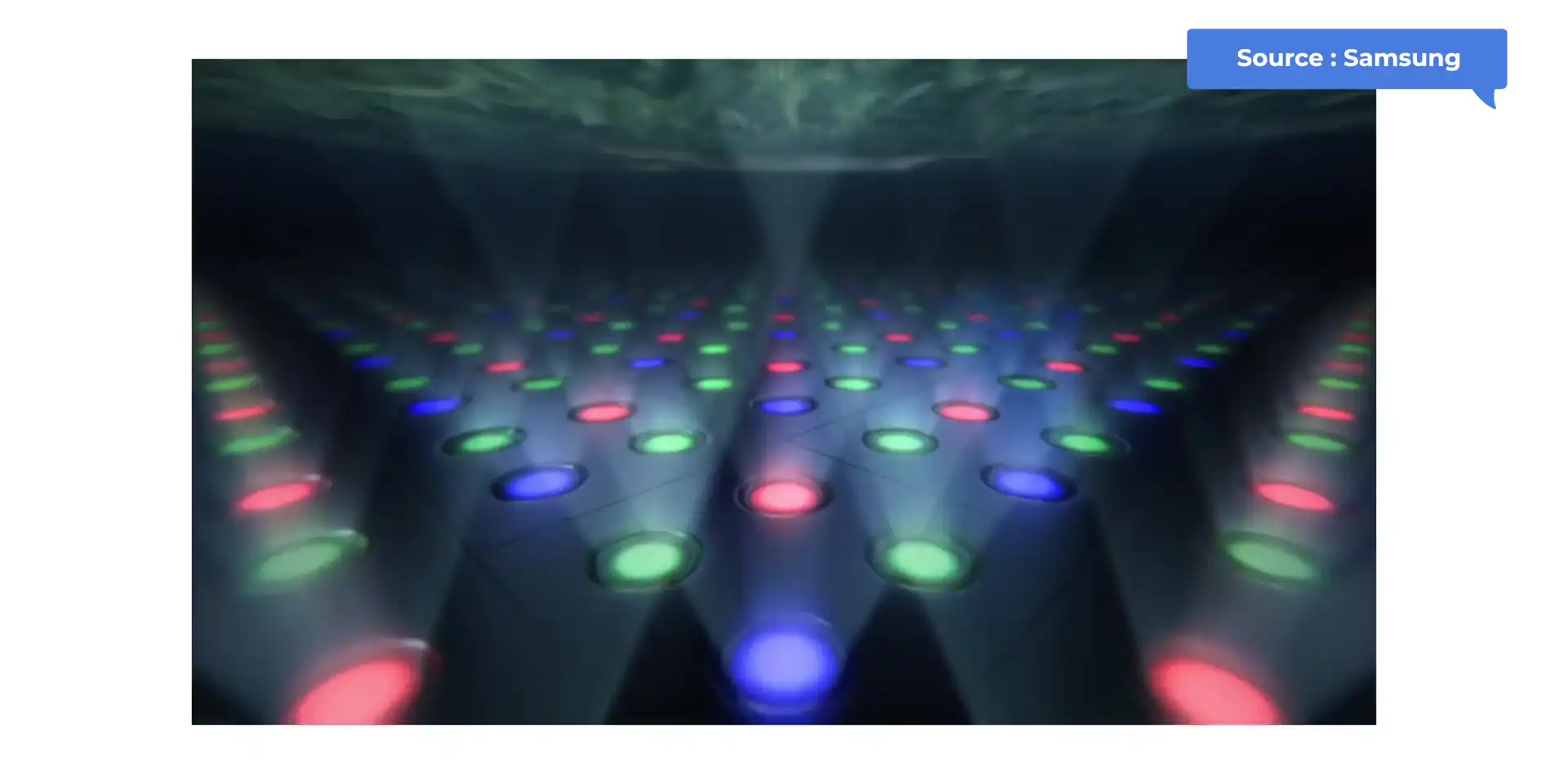
Now, imagine each of those little bulbs gets a black cover slapped on it. It isn’t turning off the light, but it is blocking it from escaping sideways. The light shines directly at your eyes, but anyone on your left, right, above, or below sees nothing. That is exactly what happens at the pixel level inside this display.
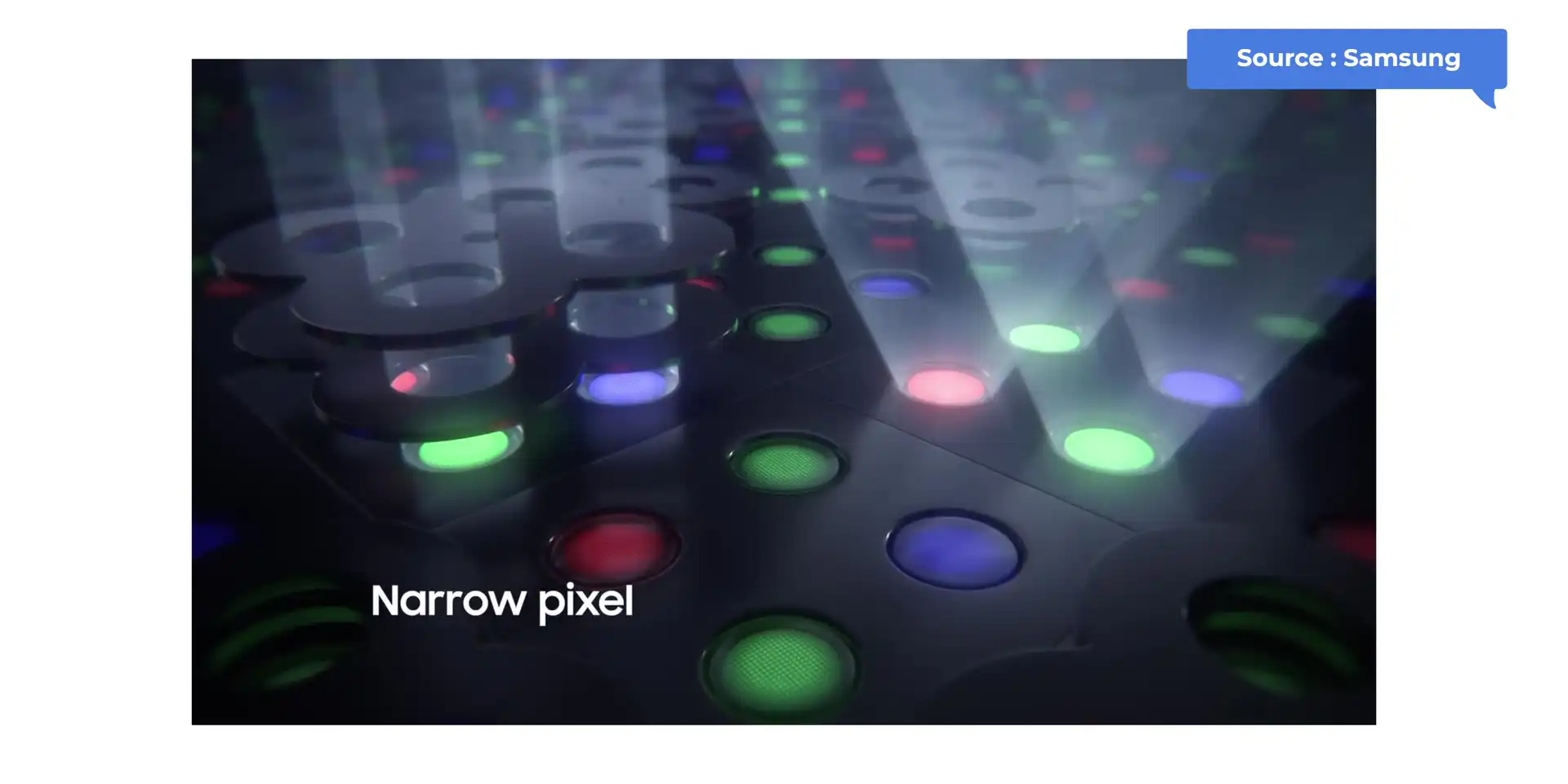
Samsung demonstrated this at Mobile World Congress with a single-pixel model featuring a physical black cover that closes around it. This is why the feature cannot be added to the S25 Ultra or other S26 models via a software update – the phones simply lack the necessary hardware panel.
Why Does It Matter?
Think about your daily routine: the LRT to work, grabbing lunch, or sitting in a co-working space. How many times has your screen been publicly exposed? Whether you’re reading private messages, entering a password, opening a banking app, or reviewing confidential documents at a cafe, the lack of privacy is a constant annoyance.
Most of us have just dealt with it by tilting the phone awkwardly or cupping our hands over the screen. With the Privacy Display, you don’t have to do any of that. You stay comfortable and in control, and that nosy person next to you sees absolutely nothing.
Misconceptions
You might be thinking, “I can just buy a privacy screen protector and call it a day.” While a privacy screen protector works, it is an “always-on” solution.
If you are watching a video and want to share it with a friend, or if you are showing someone a photo, you have to awkwardly angle the phone so they can see it. With Samsung’s Privacy Display, you get to choose which app triggers it. Your banking apps, messaging, or password screens can be protected, while everything else functions normally. That is a level of flexibility a physical screen protector can never provide.
Another common misconception is that the feature makes the screen dimmer. The truth is that the screen remains bright and crisp for the user. Only the side angles are blocked. If you feel it is still a little dim, simply increase your brightness settings to solve the issue.
Setup
Here is how to set it up properly on your S26 Ultra:

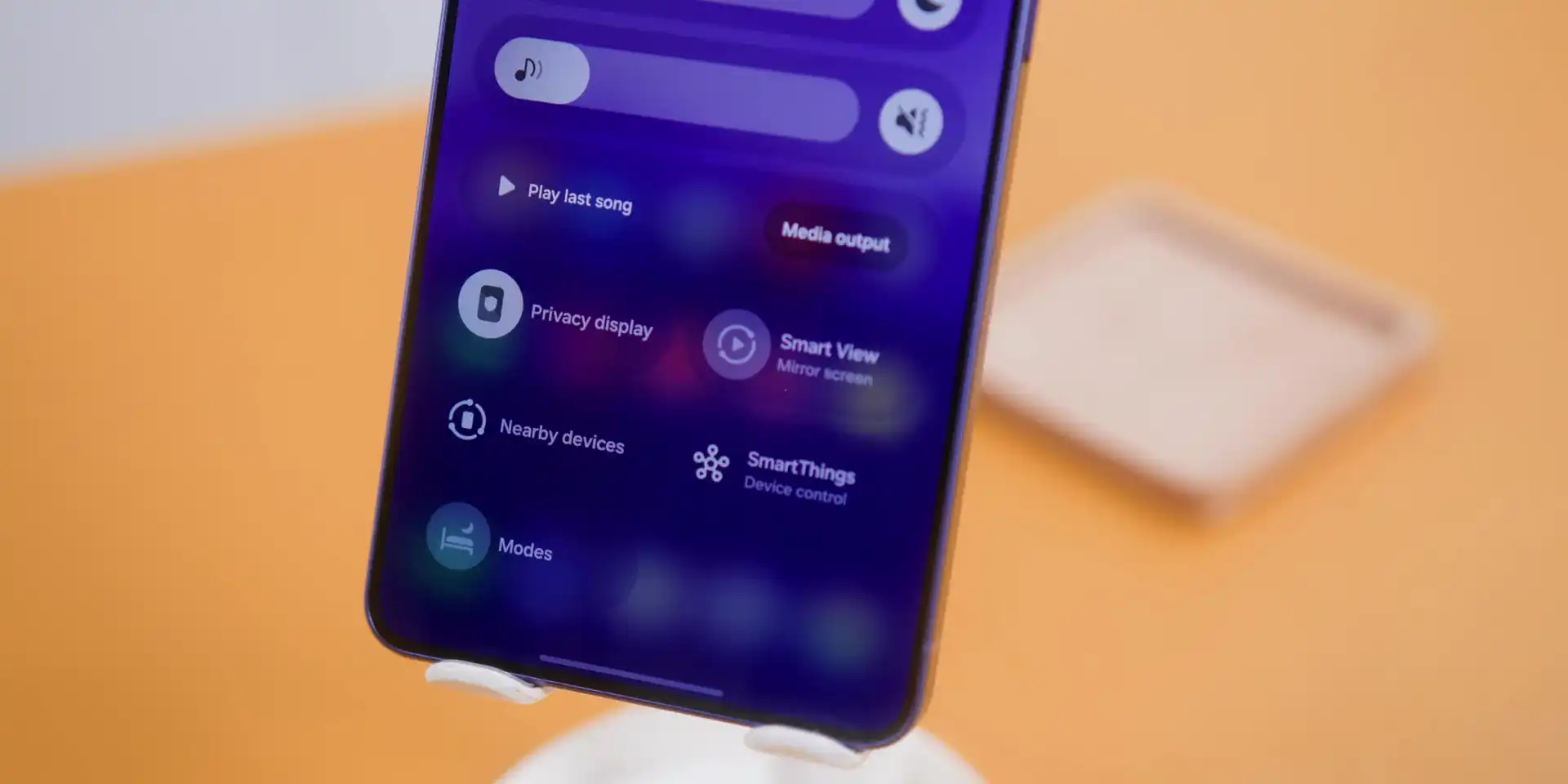
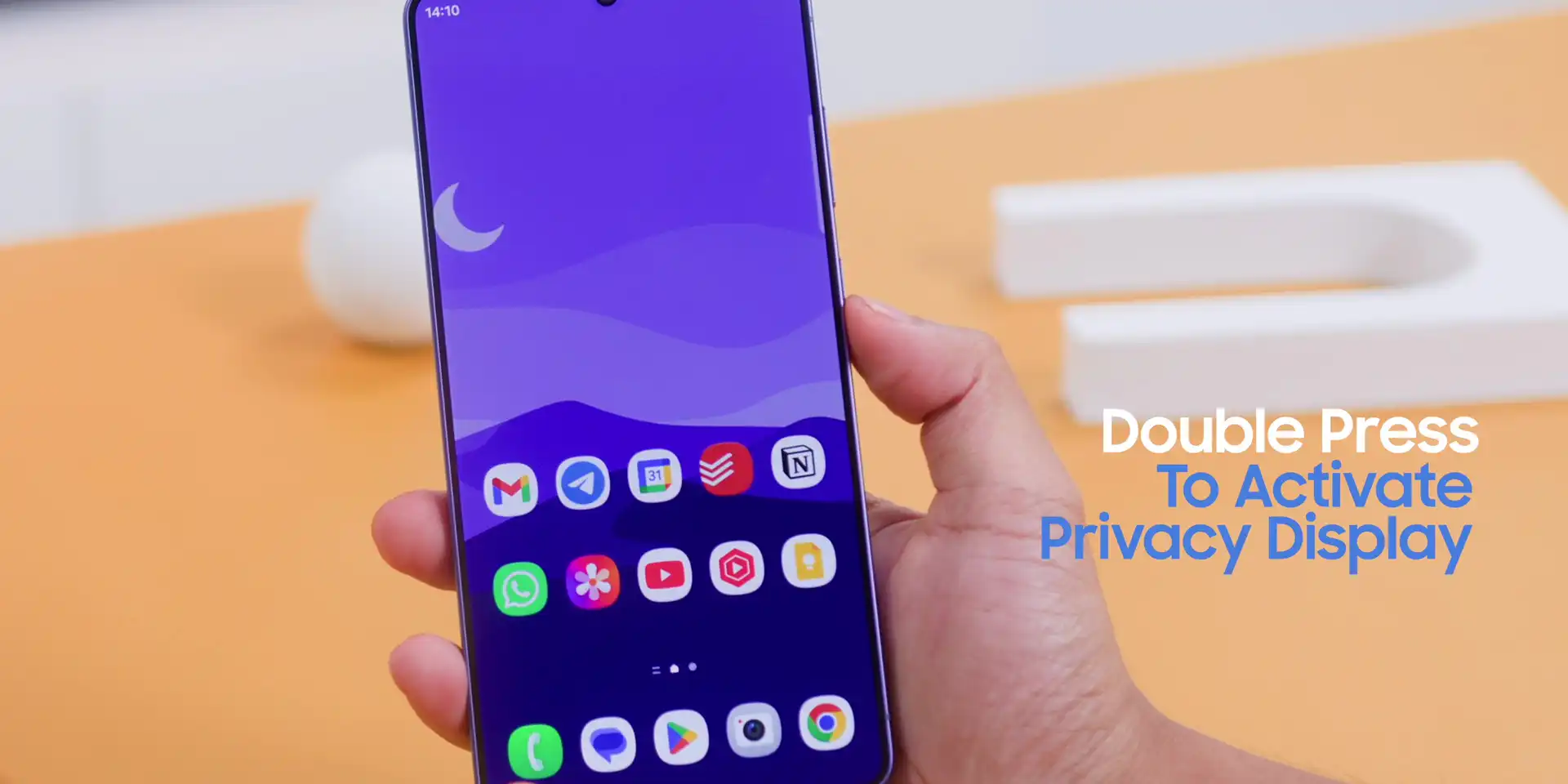
Quick Toggle: Swipe down from your notification bar and look for the Privacy Display toggle. Tap it for instant, universal privacy. You can also remap your side button to double-press to activate this mode.
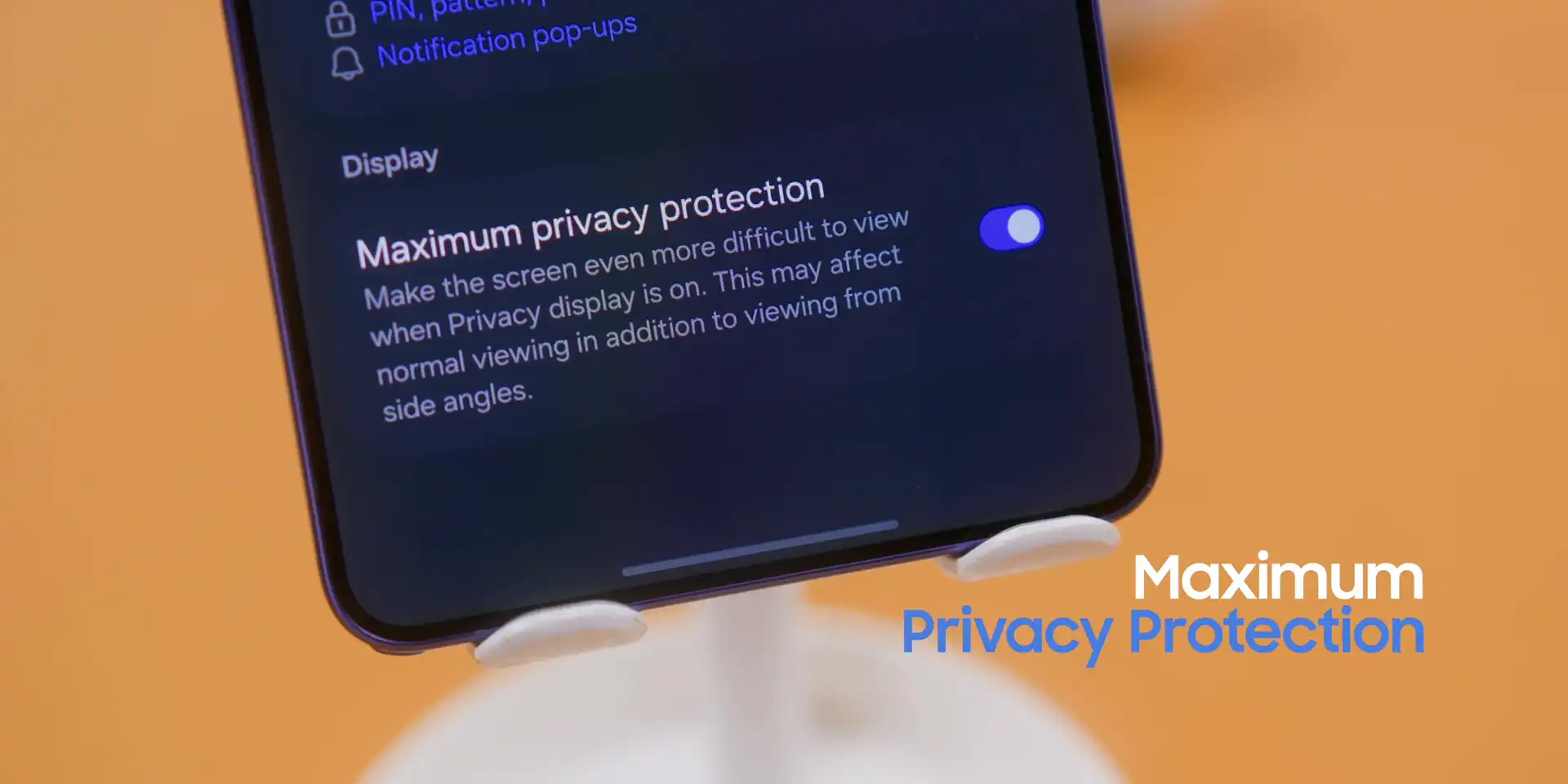
Choose Your Mode: You have two levels of protection. “Standard Privacy Mode” limits side visibility noticeably, while “Maximum Privacy Protection” kicks it up even further. This works in both portrait and landscape orientation.
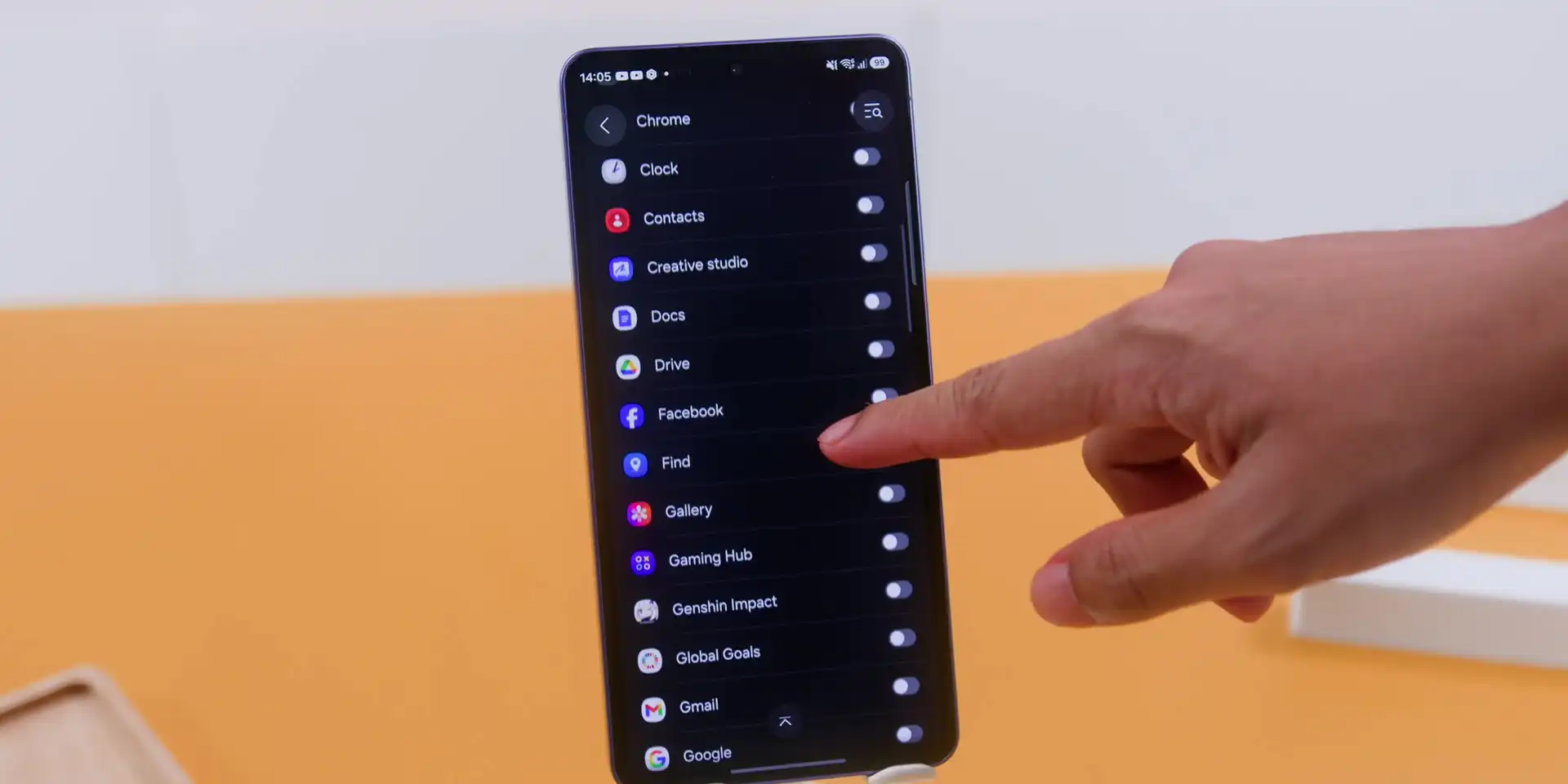
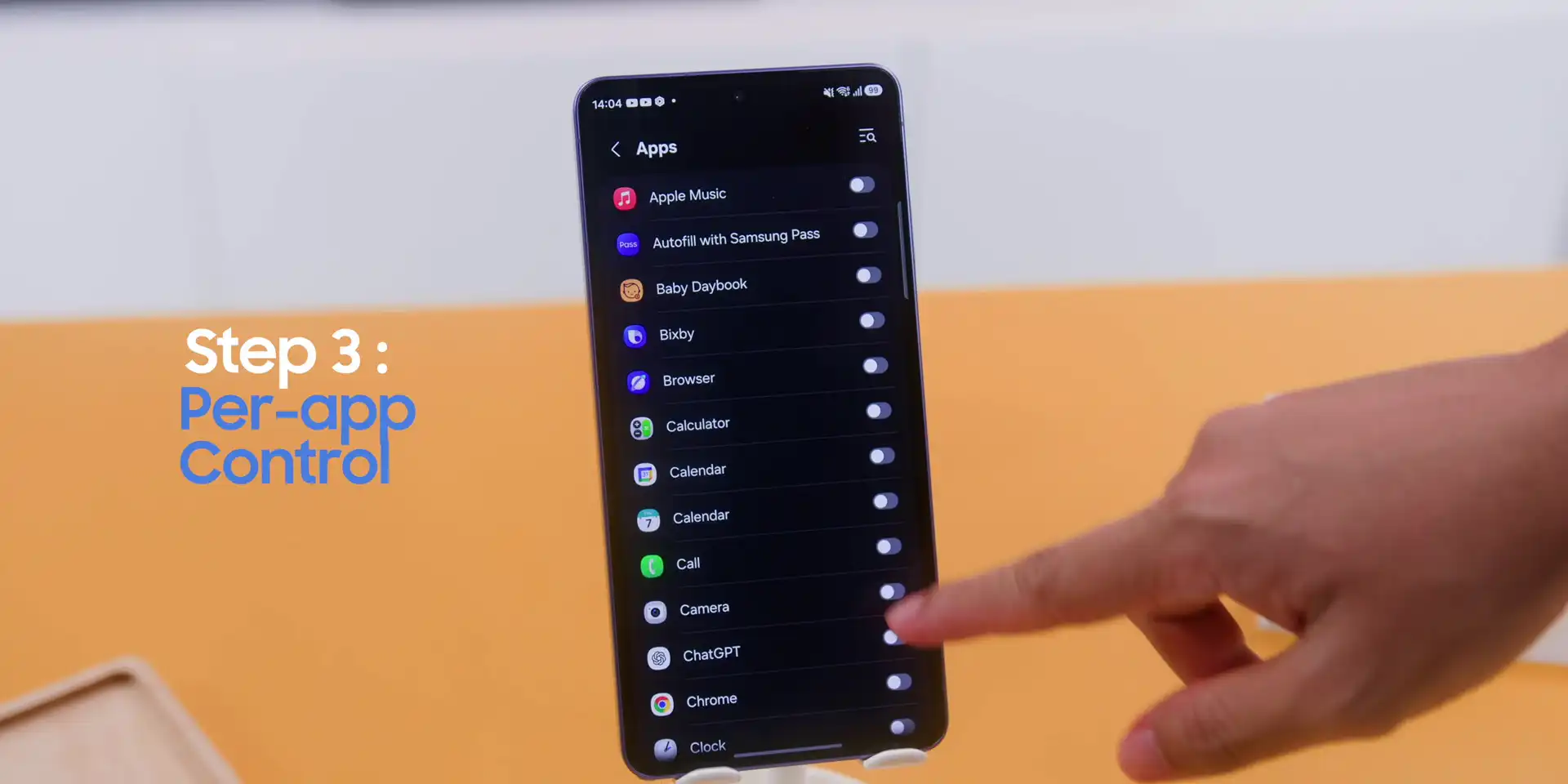
Per-App Control: Go to Settings > Display > Privacy Display > Conditions for turning it on. From here, you can select which apps automatically trigger the Privacy Display the moment you open them – perfect for banking, messaging, or work email.
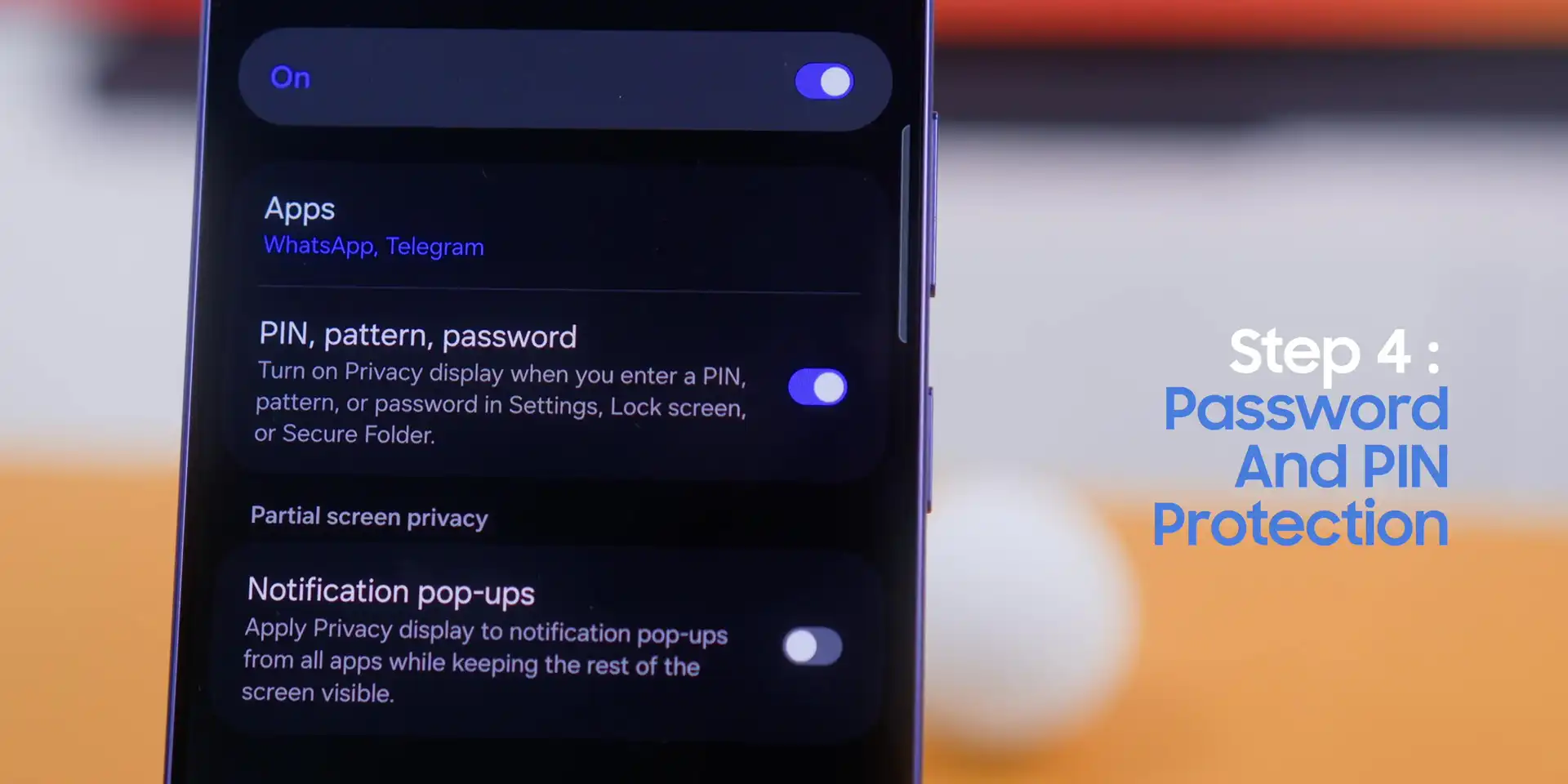
Password and PIN Protection: You can set the Privacy Display to activate automatically whenever you enter a PIN or password. This ensures that the moment someone tries to shoulder-surf your passcode, the privacy filter kicks in.
Conclusion
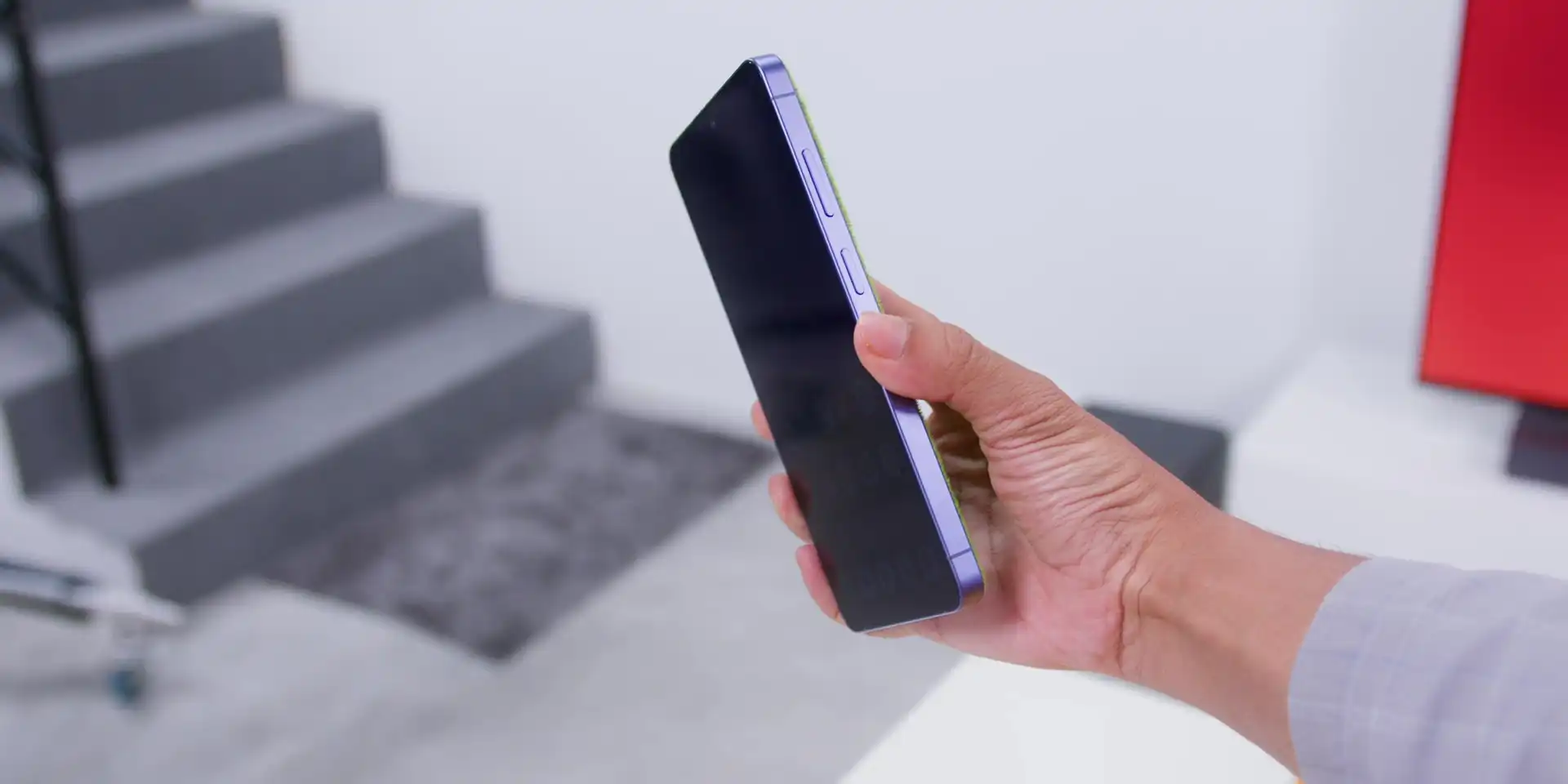
A lot of features on flagship phones these days feel like they were added just to fill a spec sheet. But this Privacy Display feels different because it solves a real, everyday problem. Because this is a hardware-level feature and not a software filter, it works perfectly for the S26 Ultra, and because it is app-specific, it never gets in your way when you don’t need it.
Bonus: Circle to Search 3.0
What you also really need now is Circle to Search with Google 3.0. Together with OneUI 8.5, it has received a serious upgrade, allowing you to circle multiple items at once. If you see an outfit you like, just circle the shoes, the bag, and the jacket all together in one big circle, and it will provide results for everything simultaneously. That’s the new “Find the Look” feature.
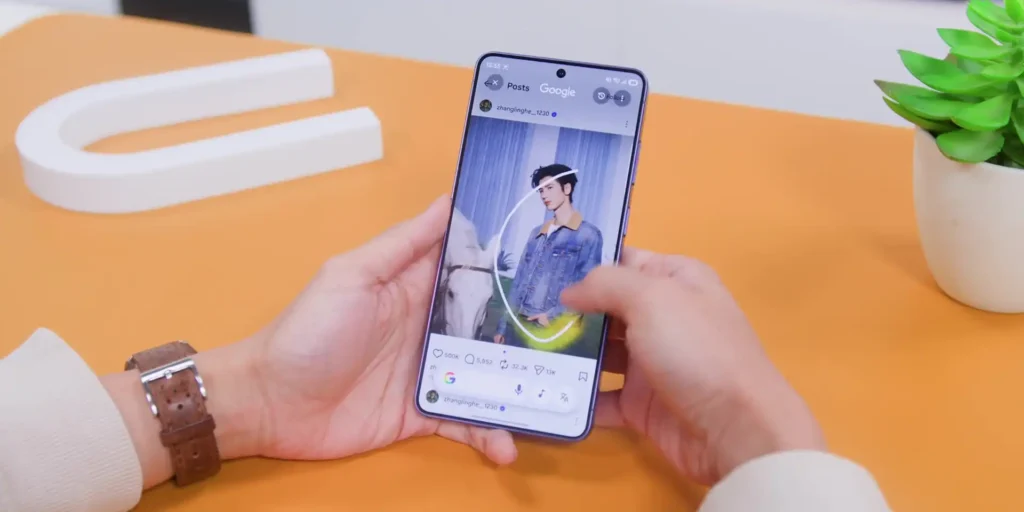
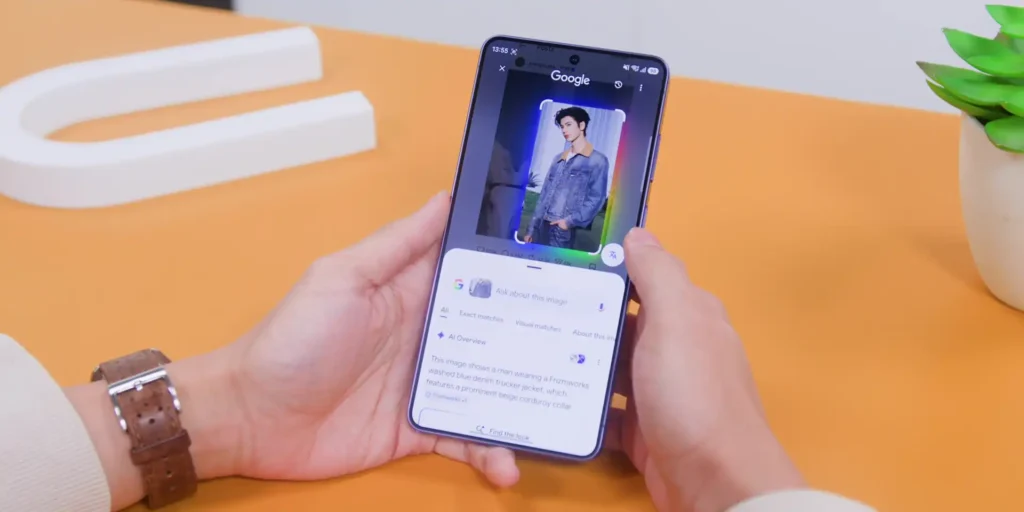
But it doesn’t stop there. After you circle, you can keep the conversation going by asking, “Where can I get this in Malaysia?” or “How much does it usually cost?” Thanks to the new “Continuous Conversation” feature, this changes how you search for everything moving forward.
.
▶️ Watch the full video on YouTube
Frequently Asked Questions (FAQ)
How does the Samsung Galaxy S26 Ultra privacy display work?
It functions at the hardware pixel level rather than using software filters. Each pixel features a microscopic physical cowl or cover demonstrated by Samsung at Mobile World Congress. When activated, these cowls block light from escaping sideways to the left, right, top, or bottom, ensuring the screen is only visible when viewed directly from the front.
Can I get the privacy display feature on the S25 Ultra via a software update?
No. Because this technology relies on a specialized physical hardware panel built directly into the display grid, it cannot be backported or added to older models like the Galaxy S25 Ultra or standard S26 models through a OneUI software update.
Is the Samsung privacy display better than a physical privacy screen protector?
Yes, due to its flexibility. A physical screen protector is an always-on solution that makes it incredibly awkward to share photos or watch videos with friends. Samsung’s built-in solution allows you to toggle the protection on or off instantly or program it to automatically launch only when specific apps are open.
Does turning on the privacy display make the phone screen look dimmer to the user?
No, the display remains bright, crisp, and clear when viewed directly from the front. The technology is specifically engineered to block light only at wide side angles. If your display feels slightly dim after activation, you can easily counter this by manually increasing your system brightness slider.
How do I make the privacy filter turn on automatically for my banking apps?
Navigate to Settings, select Display, tap on Privacy Display, and open the Conditions for turning it on menu. From there, you can select individual banking, messaging, or work email applications to trigger Maximum or Standard privacy protection the exact moment they are opened.
Related:
- The Samsung Galaxy S26 Ultra After 1 Month: Was the Hype Worth It?
- Samsung S26 Ultra Display Flicker Fix: Is the Privacy Screen Worth It?