TL;DR / At A Glance
The updated Siri AI features powered by Apple Intelligence fundamentally rewrite Apple’s assistant architecture. Moving away from rigid, one-off commands, the system introduces multi-modal capabilities including on-screen visual awareness, cross-app chained task execution, and deep personal context processing natively on-device. This cross-ecosystem upgrade syncs a continuous chat history across iPhone, macOS, and iPadOS devices via private iCloud architecture.
It has been a week since WWDC, which means it has also been a week of running the beta version of Siri AI across an iPhone, Mac, and iPad. Beyond the initial Keynote demonstrations, testing this new intelligence system in everyday life reveals exactly how Apple Intelligence feels in the real world (including some genuinely shocking moments).
Quick disclaimer: This is a beta, so it is highly recommended to avoid installing it on your primary devices. Waiting for the stable public version coming later this year is the smartest move.
The New Architecture: Clearing the Confusion
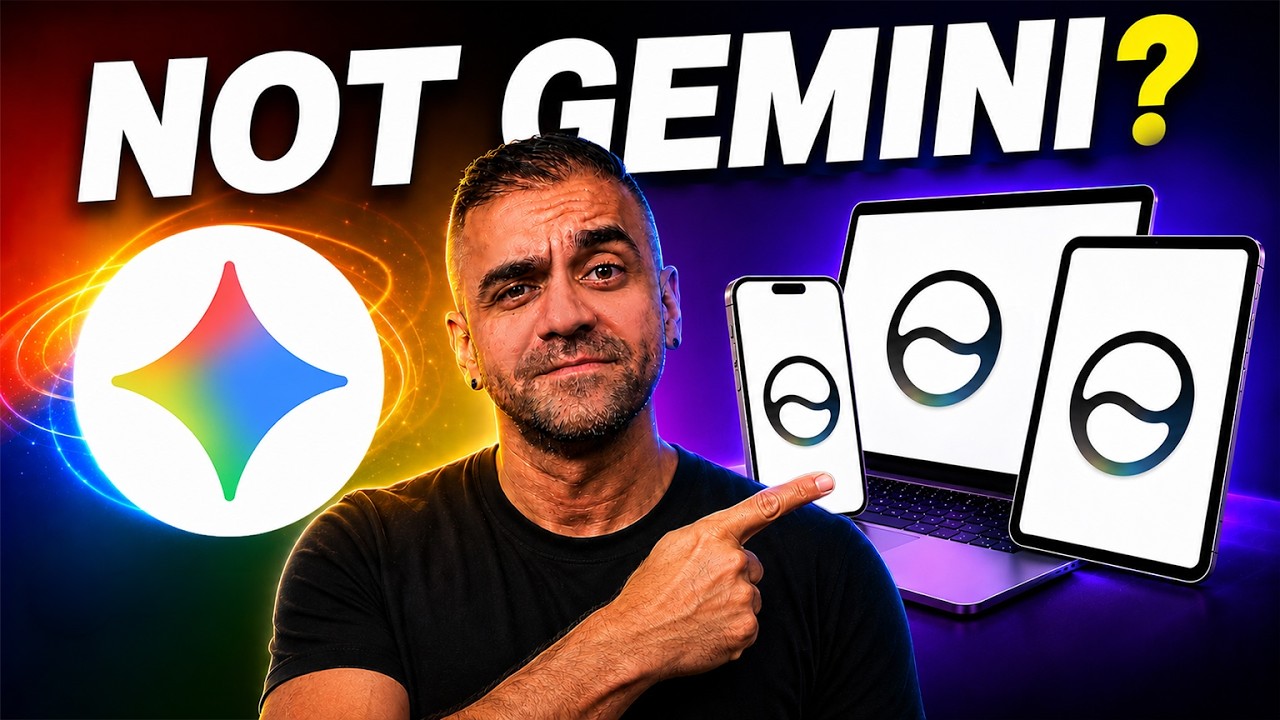
Before diving into device-specific features, it is important to clear up a major misconception: Siri AI is not just Google Gemini rebranded under an Apple logo.
This is not a minor update to the legacy assistant; it is a brand-new architecture powered by entirely new AI models. Apple built this system in deep collaboration with Google, utilizing Gemini’s technology as a foundation. The resulting system combines Gemini’s core strengths with the Apple Foundation Model. The key differentiator is that it remains Apple’s proprietary framework, running locally on-device and processing your data privately.
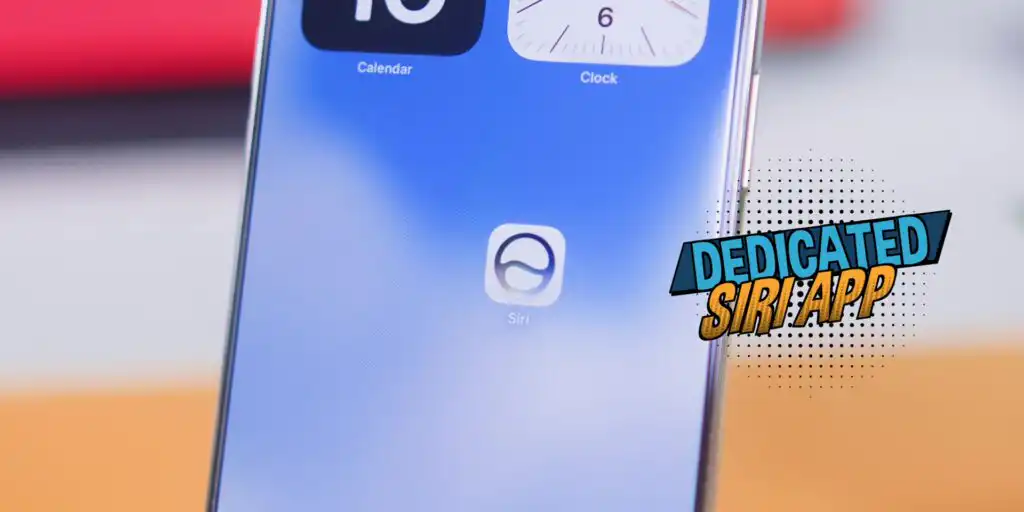
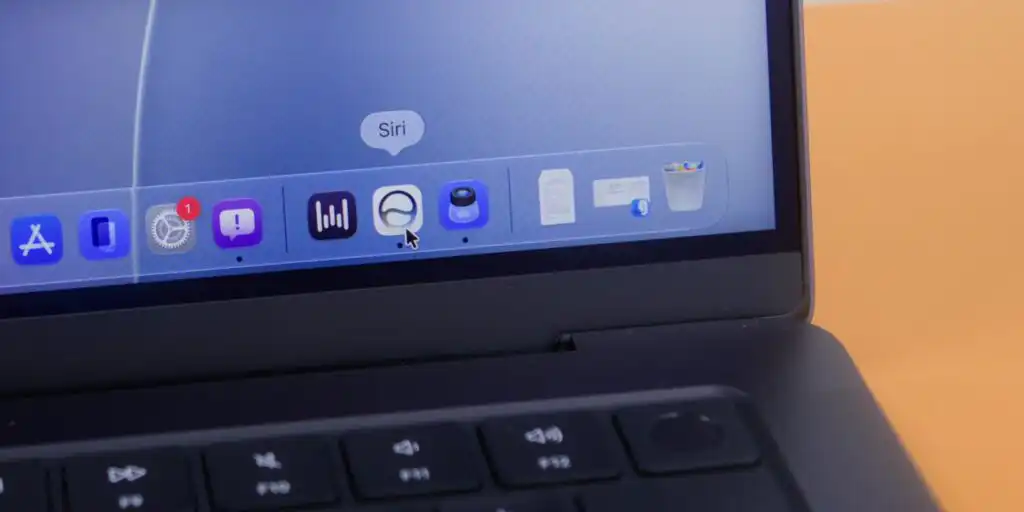
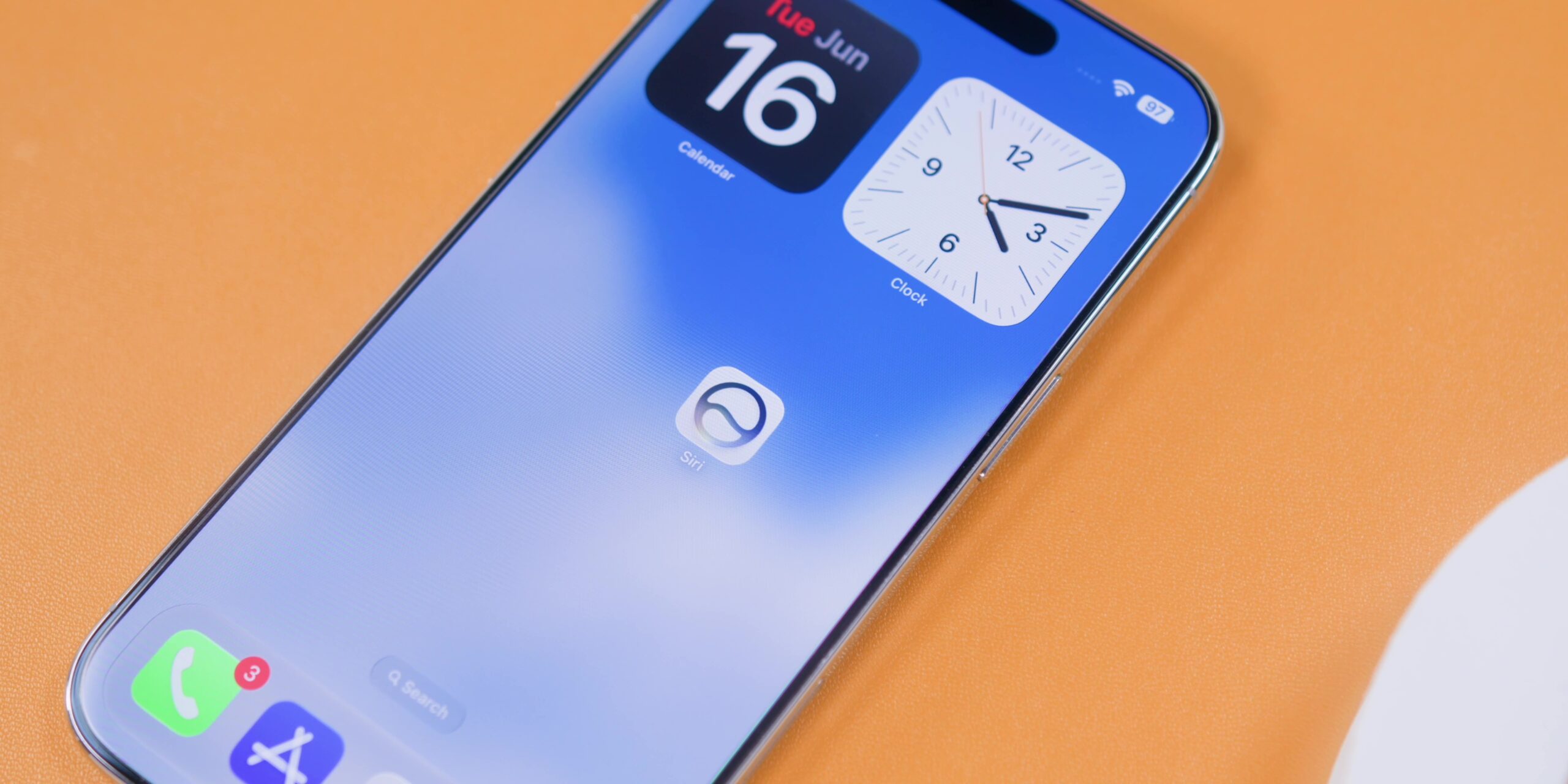
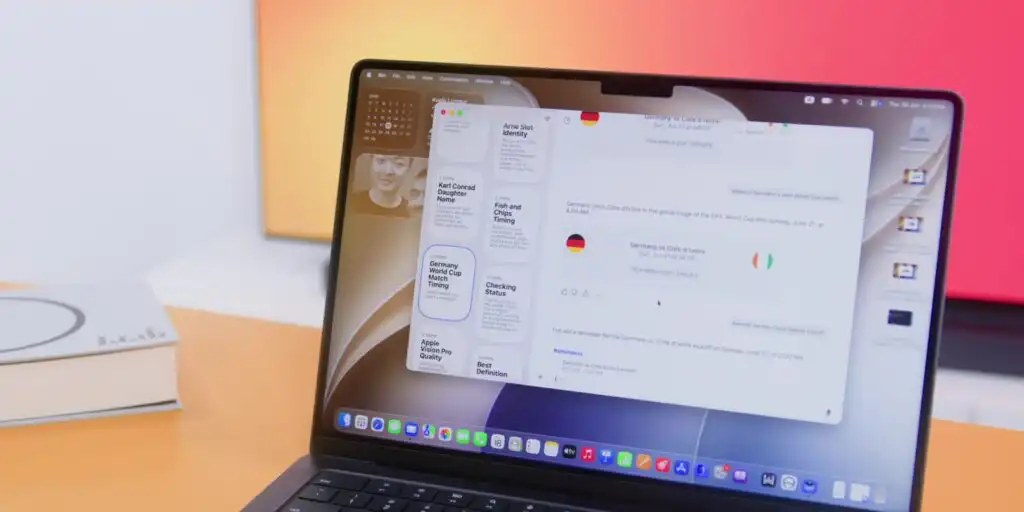
Alongside this structural overhaul, Apple introduced a dedicated Siri app. Operating as a centralized conversation hub, every interaction you have with the assistant is stored privately and synced across your iPhone, Mac, and iPad via iCloud. This allows you to start a complex query on your phone, pick it up later on your computer, and finalize it on your tablet.
iPhone: Personal Context and Visual Intelligence
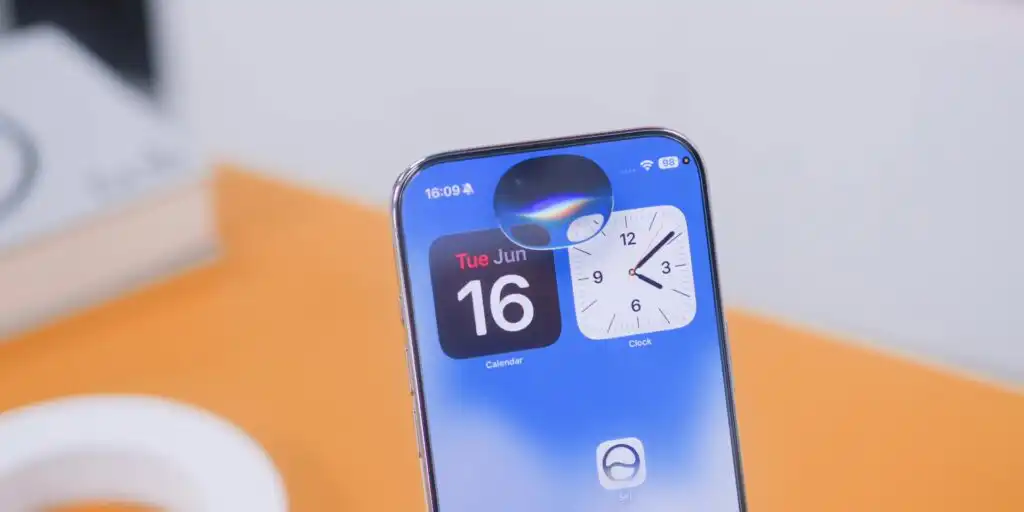
On the iPhone, the classic methods of accessing the assistant remain, such as saying the wake phrase or holding the Side button. However, users can now also swipe down from the Dynamic Island to call up the assistant. The traditional notification menu is still accessible from the top left, while the Control Center rests at the top right.
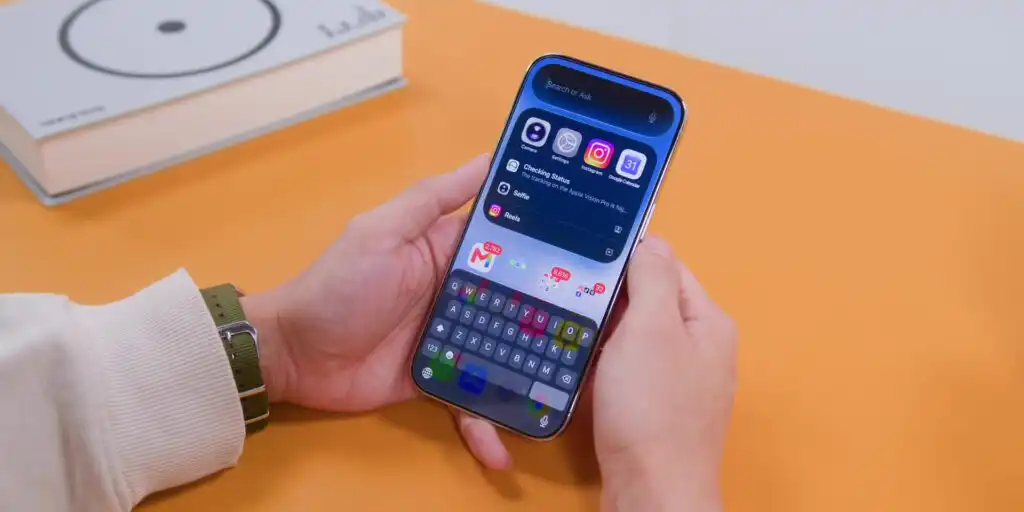
Where the new architecture shines is in handling complex, chained requests and understanding personal context.
Contextual Awareness in Action
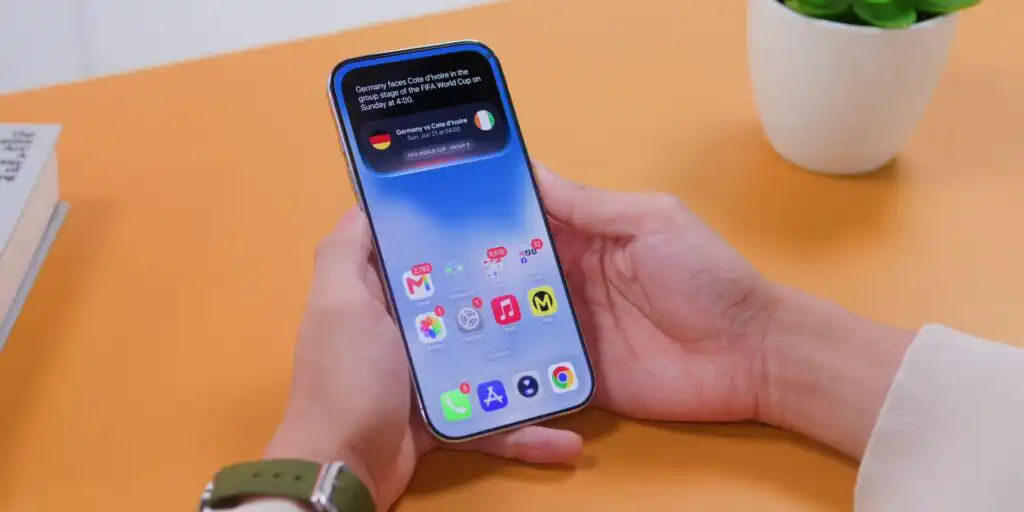
In older versions, asking a sports question resulted in a basic one-line answer. With the new update, asking about an upcoming match pulls in complete fixture data, dates, and kickoff times. You can immediately follow up with, “Remind me two hours before kickoff,” and the system automatically updates the Reminders app without requiring any app-switching.
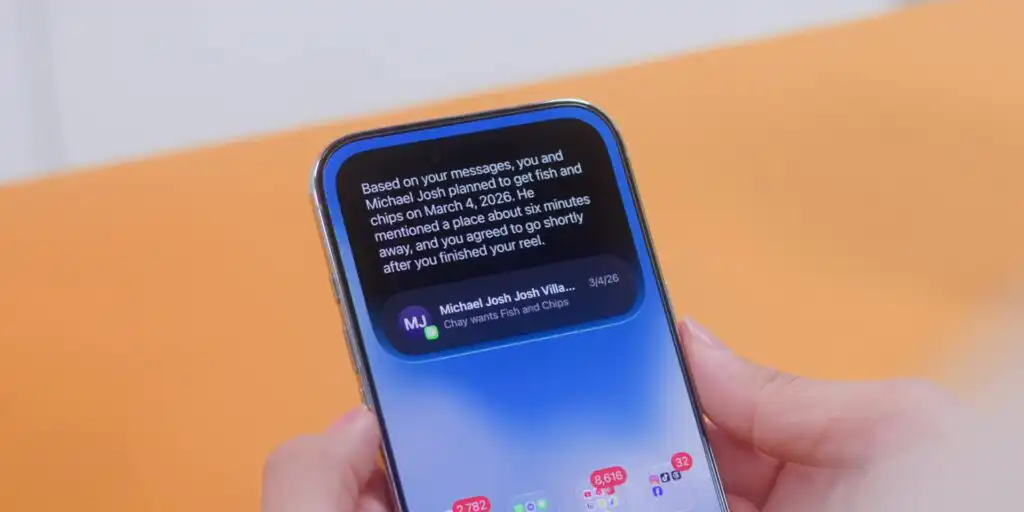
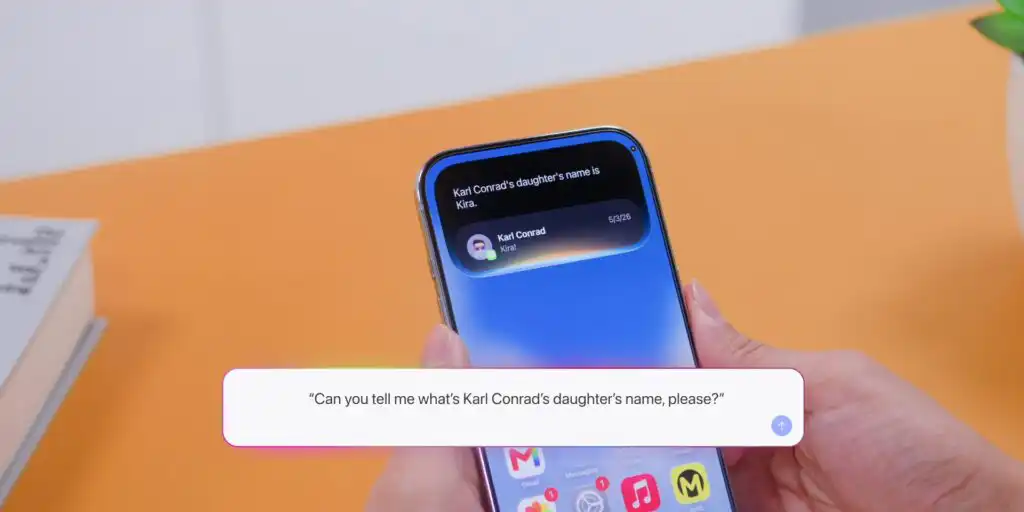
The assistant can also map connections across your personal data. Commands like “Tell me when my friend and I had fish and chips” or “What is my colleague’s daughter’s name?” prompt the system to scan your private Messages history to pull exact dates and names instantly.
On-Screen and Visual Tasks
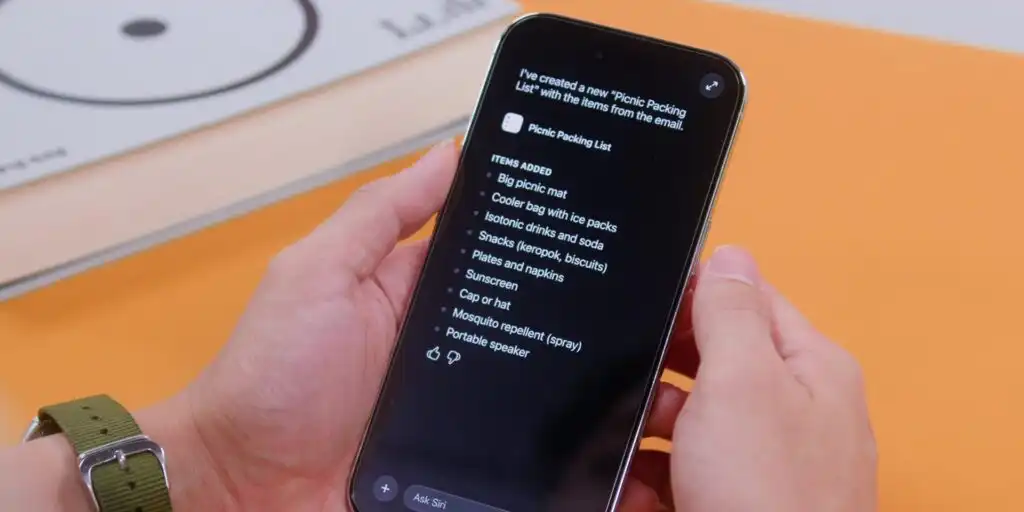
The updated system also features robust on-screen awareness. If you are looking at an image or reading a long, detailed email about a picnic list, you can simply activate the assistant and say, “Create a packing list based on this email.” The assistant parses the open text and generates the list natively.
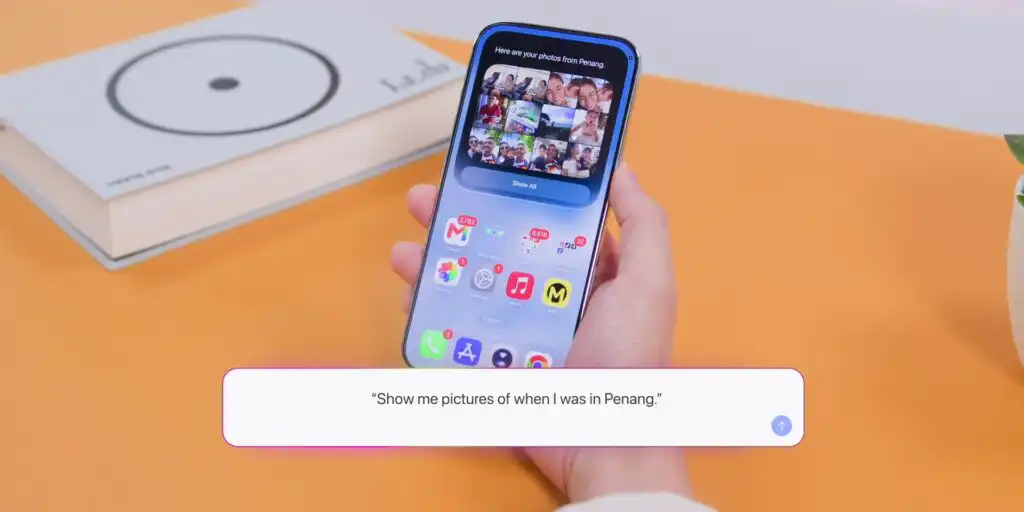
Similarly, photo management is heavily upgraded. Asking to see photos from a specific family trip causes the Photos library to filter out everything except the precise location and dates requested.
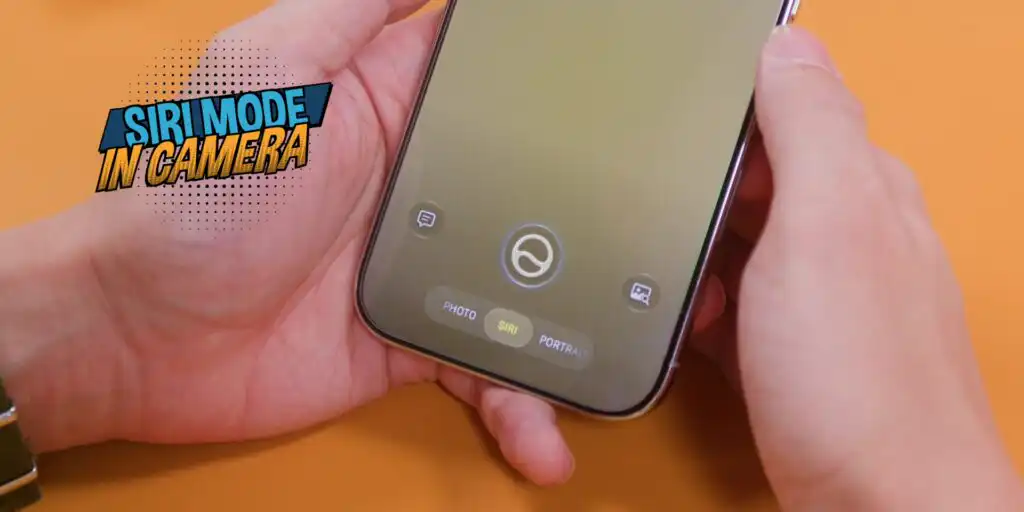
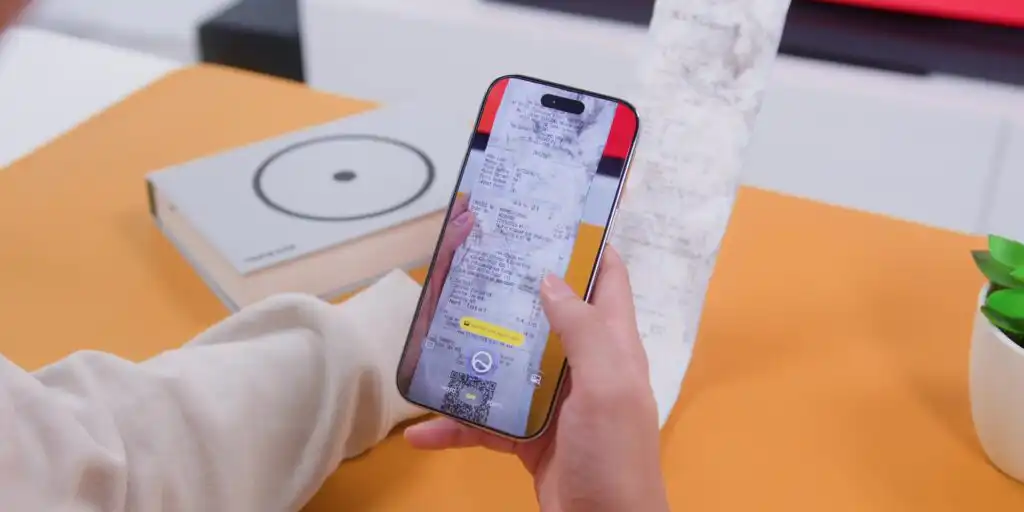
Through the Camera app, a feature called Visual Intelligence introduces advanced real-time analysis. Pointing the camera at a latte and asking for a calorie breakdown results in an immediate analysis of the beverage type, milk variations, and nutritional data.
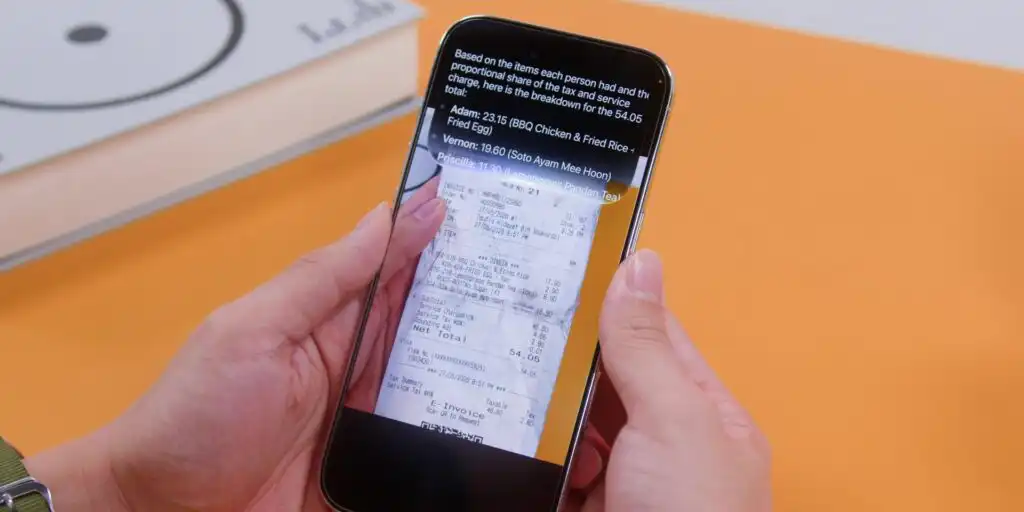
For international users waiting on localized features like Apple Cash, this visual tool offers a practical workaround for expense management:
Workaround Tip: Take a photo of a restaurant receipt, activate the assistant, and ask it to split the bill between a specific number of people. By dictating who ordered what, the system calculates individual totals, including tax, automatically.
Mac: Spotlights, Workflows, and Document Analysis
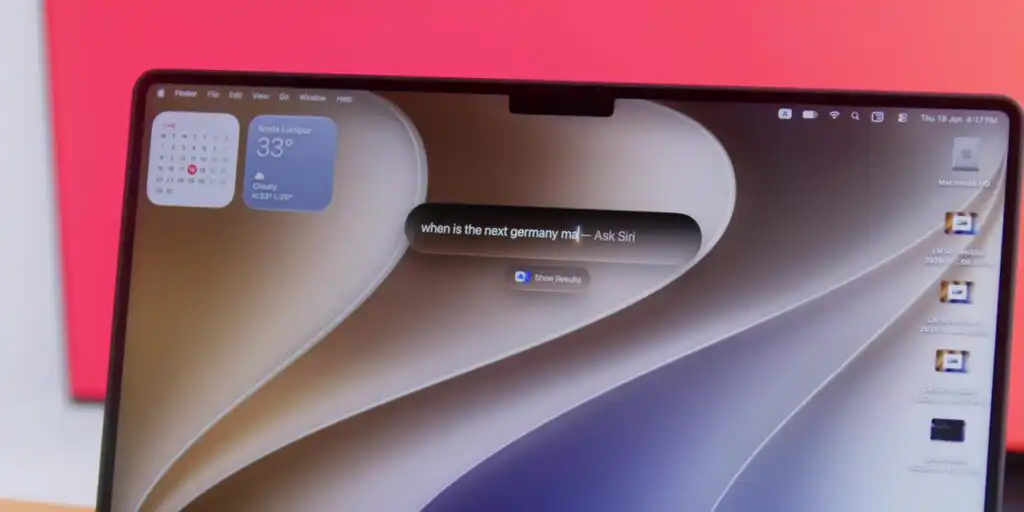
On macOS, activating the assistant is seamlessly integrated into Spotlight. As you type a question, the system automatically recognizes it as an “Ask Siri” query. Because it operates within the desktop environment, the conversation window can be dragged anywhere on the screen and resized to fit your workspace.
Advanced Document Comparison
The most impactful feature on the Mac involves localized document processing.
When dealing with multiple PDFs, such as complex vendor quotes for an event, all formatted completely differently, you can highlight the files, control-click, and select Ask Siri from the contextual menu.
[Select Multiple PDF Files] ➔ [Control + Click] ➔ [Select “Ask Siri”] ➔ [Enter Prompt]
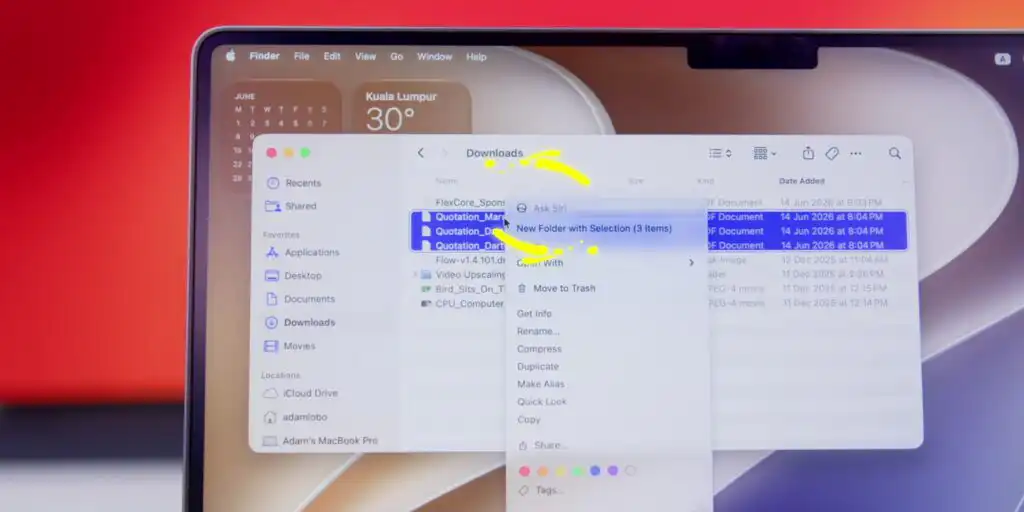
Prompting the assistant to “Compare these and tell me which gives me the best value for money” commands it to analyze the documents, construct a comprehensive comparison table, break down the line items, and highlight the advantages of a specific vendor.
From there, you can ask follow-up questions like, “Which vendor handles installation?” and seamlessly transition into an email workflow by stating, “Draft an email to the chosen vendor asking to expedite delivery.” The assistant pulls the vendor’s contact info, drafts the text, and opens the Mail app automatically.
Document Breakdown with Visual Intelligence
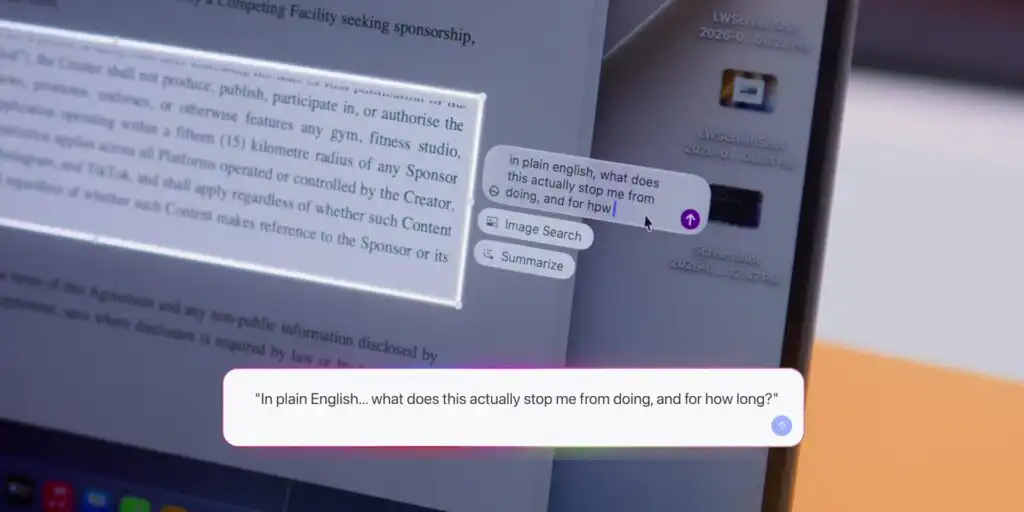
By utilizing the shortcut “Shift + Command + 6”, users can select any area of their screen to analyze with Visual Intelligence. This is particularly useful for translating complex legal language in a contract or sponsorship agreement into plain terms, allowing you to ask follow-up questions regarding exclusivity clauses or timelines instantly.
iPad: The Hybrid Workspace
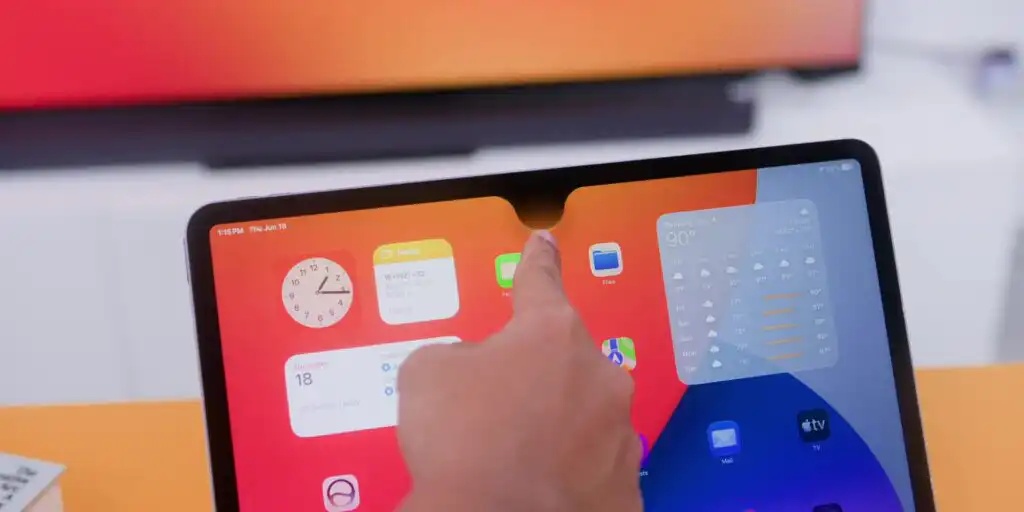
The iPad delivers a hybrid experience that blends the portability of the iPhone with the productivity power of the Mac. Accessing the assistant utilizes an updated user interface where you swipe from the middle of the screen to reveal an interactive bubble animation.
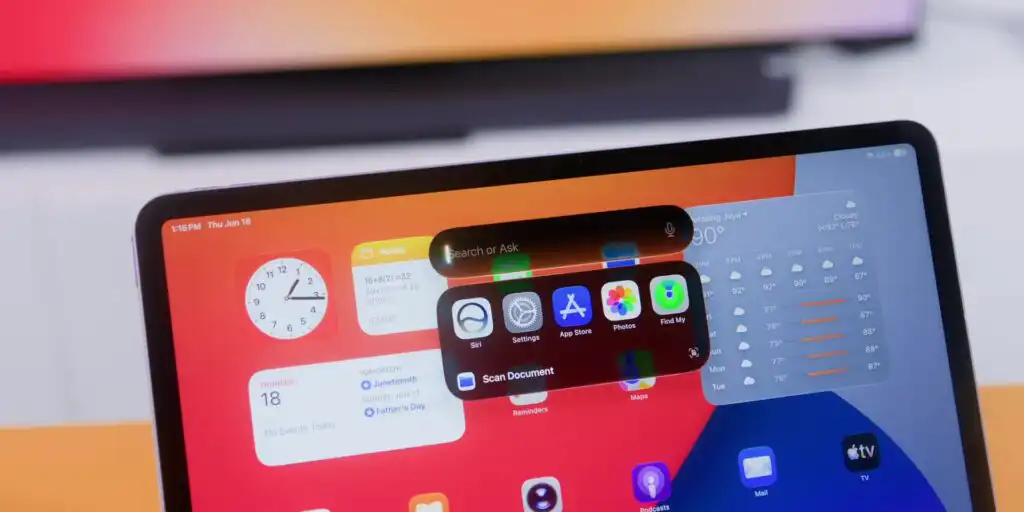
The dedicated app on iPad supports flexible windowing options, letting you view your fully synced, end-to-end conversation history alongside your active workspace.
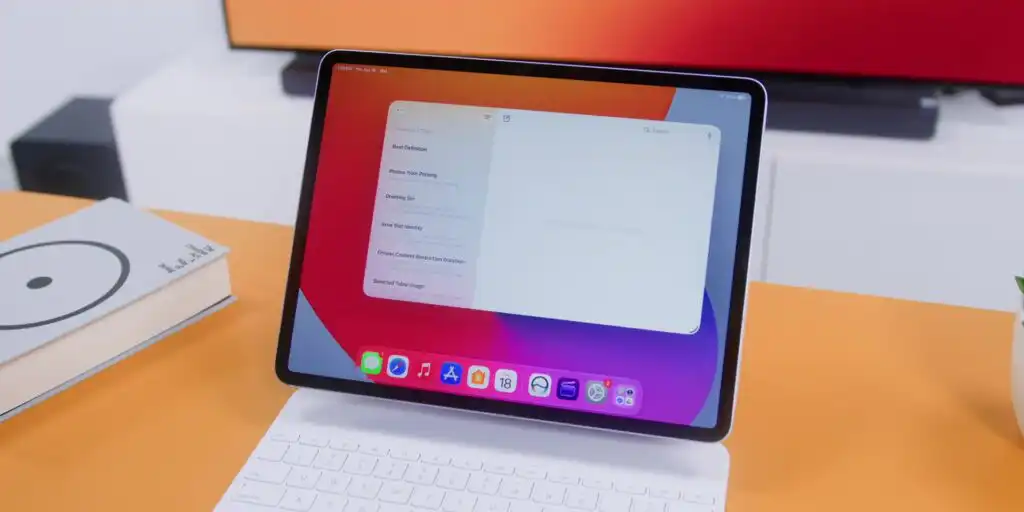
Screenshot Integration
The iPad features a unique implementation of Visual Intelligence built directly into the screenshot utility. Taking a screenshot of a product spec sheet allows you to tap an Ask button right from the preview window to query specific details instantly, meaning no copy-pasting or app-switching is required.
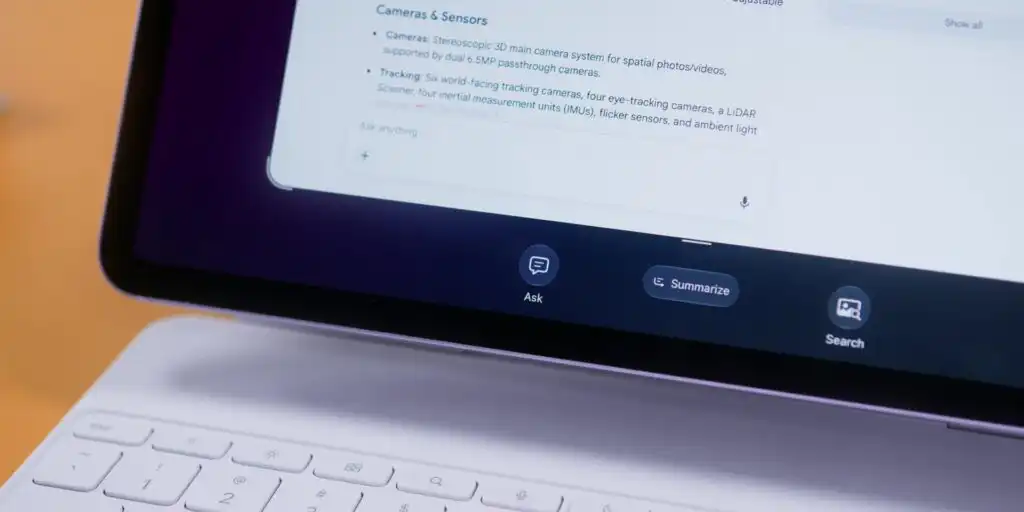
Furthermore, system-wide Writing Tools are natively integrated. You can generate text drafts, refine social media captions, or proofread documents locally inside your workflow without needing to rely on external, cloud-based large language models.
Final Verdict
This initial look at the Siri AI beta proves that Apple Intelligence fundamentally changes how users should interact with ecosystem devices. Moving forward, the virtual assistant shouldn’t be treated as a simple, one-question tool, but rather as an active, contextual digital partner.
As the beta period progresses, expect even more use cases and refinements to emerge ahead of the official public rollout.
Frequently Asked Questions (FAQ)
Is the new Siri AI just Google Gemini rebranded under an Apple logo?
No. While Apple built this system in deep collaboration with Google, utilizing Gemini’s technology as a core foundation, it remains Apple’s proprietary framework. The system combines Gemini’s strengths with the Apple Foundation Model to run tasks locally and process data privately on-device.
How do you access the new Siri AI on an iPhone running the beta?
Alongside legacy options like using the wake phrase or holding the Side button, users running the beta can now simply swipe down from the Dynamic Island to bring up the updated assistant interface.
Can Siri AI read what is currently on my screen?
Yes. The new architecture features robust on-screen and visual awareness. For example, if you are reading a long email detailing a list of items, you can activate the assistant and request it to instantly generate a native packing list based directly on that open text.
How does the new Siri app handle conversations across multiple Apple devices?
The dedicated Siri app functions as a centralized, private conversation hub. Every interaction you have is securely synced via iCloud across your iPhone, Mac, and iPad, allowing you to start a complex workflow on your phone and finish it later on your desktop or tablet.
Related:
- Siri AI: Inside The Siri We Actually Asked For
- All Systems Glow: Everything Apple Announced at WWDC26